
Imagine walking into your home on a cold evening, and before you even step through the door, your lights are warming to a comfortable glow, your thermostat has already raised the temperature, and your favorite music is playing softly in the background. This isn’t science fiction anymore. With the right setup, controlling your smart home with your phone has become as simple as opening an app and tapping a few buttons. Whether you’re across the room or across the country, your smartphone has become the remote control for your entire living space.
In 2026, more homeowners than ever are discovering the convenience and efficiency of managing their smart home devices through mobile applications. The technology has matured significantly, making it more accessible and user-friendly for everyone from tech enthusiasts to complete beginners. If you’ve been wondering how to control your smart home with your phone but weren’t sure where to start, this guide will walk you through everything you need to know.
We’ll cover the essential steps to get your devices connected, explore the different apps and platforms available, show you how to create powerful automations, and share insider tips to maximize your smart home experience. By the end of this article, you’ll have the knowledge and confidence to manage your entire smart home ecosystem from the palm of your hand.
Understanding the Basics of Smart Home Phone Control
Before diving into the technical setup, it’s important to understand how controlling your smart home with your phone actually works. Your smartphone communicates with your smart devices through a combination of wireless technologies and cloud services. When you tap a button in an app, you’re sending a command through your home’s WiFi network or cellular connection to your devices, which then execute that command.
How Smart Home Connectivity Works
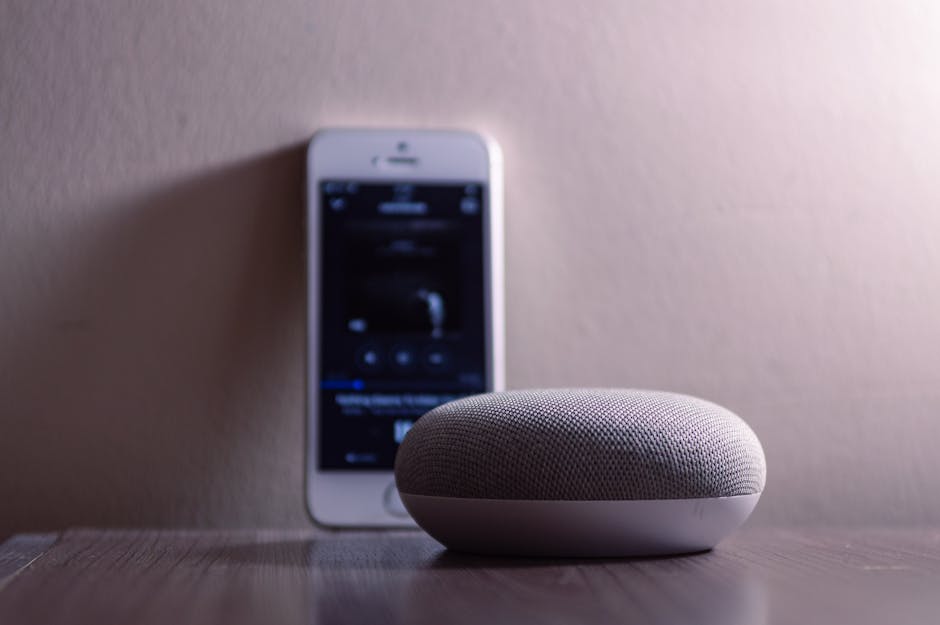
Your smart devices need three key components to be controllable from your phone. First, they need a wireless connection method, typically WiFi, Bluetooth, Zigbee, or Z-Wave. Second, they need to communicate with a central hub or cloud service that your phone can access. Third, your phone needs the appropriate app or platform to send commands to these devices. Understanding this three-part system helps you troubleshoot issues and make informed decisions about which devices to purchase.
The Role of Smart Home Hubs
Many smart home setups benefit from a central hub that acts as the brain of your system. This hub connects your various devices and allows them to communicate with each other and your phone, even when you’re away from home. Popular hubs include smart speakers with built-in hub functionality, dedicated smart home controllers, and router-based systems. If you’re starting fresh, understanding the importance of a hub will help you build a more reliable and responsive system. For detailed guidance on setting up your hub, check out our comprehensive guide on how to set up a smart home hub.
Setting Up Your Devices for Phone Control
Getting your devices ready for phone control involves several important steps. The good news is that most modern smart devices are designed with user-friendliness in mind, and the setup process has become increasingly straightforward.
Step 1: Choose Your Smart Devices Wisely
Start by selecting devices that work with a common platform or ecosystem. This might be Amazon Alexa, Google Home, Apple HomeKit, Samsung SmartThings, or another platform. Sticking with devices that share the same ecosystem makes controlling your smart home with your phone much easier, as they can all be managed through a single app. If you’re working with a limited budget, our guide on starting a smart home on a small budget offers practical advice on prioritizing which devices to purchase first.
Step 2: Download and Install the Necessary Apps
Each smart device or ecosystem requires its own app to function. Download the official app from your device manufacturer or your chosen smart home platform. For example, if you’re using Amazon Alexa devices, download the Alexa app. If you’re using Google Home products, download the Google Home app. Create an account, verify your email address, and log in. This account becomes your connection point for controlling devices remotely.
Step 3: Connect Your Devices to WiFi
Most smart devices need to connect to your home WiFi network to function properly. During the initial setup, the device will prompt you to select your WiFi network and enter your password. Make sure your WiFi network is stable and has good coverage throughout your home. Devices that are too far from your router or in areas with weak signals may experience connectivity issues that prevent you from controlling them with your phone.
Step 4: Add Devices to Your App
Once your devices are connected to WiFi, open the manufacturer’s app or your smart home platform app. Look for an option to add or pair a new device. This usually involves scanning a QR code on the device or entering a device code. Follow the on-screen prompts to complete the pairing process. After successful pairing, you should see the device appear in your app’s main interface, ready for control.
Step 5: Organize and Name Your Devices
Take time to name your devices clearly and organize them into rooms or zones. Instead of generic names like “Light 1” or “Switch 2,” use descriptive names such as “Living Room Floor Lamp” or “Kitchen Ceiling Light.” If your app supports room organization, group related devices together. This organization makes controlling your smart home with your phone much more intuitive and helps you quickly find the device you want to control, especially as your system grows.
Mastering Your Smart Home Apps
The app is your primary interface for controlling your smart home with your phone. Understanding its features and capabilities will significantly enhance your experience and help you get the most out of your devices.
Exploring Basic Controls
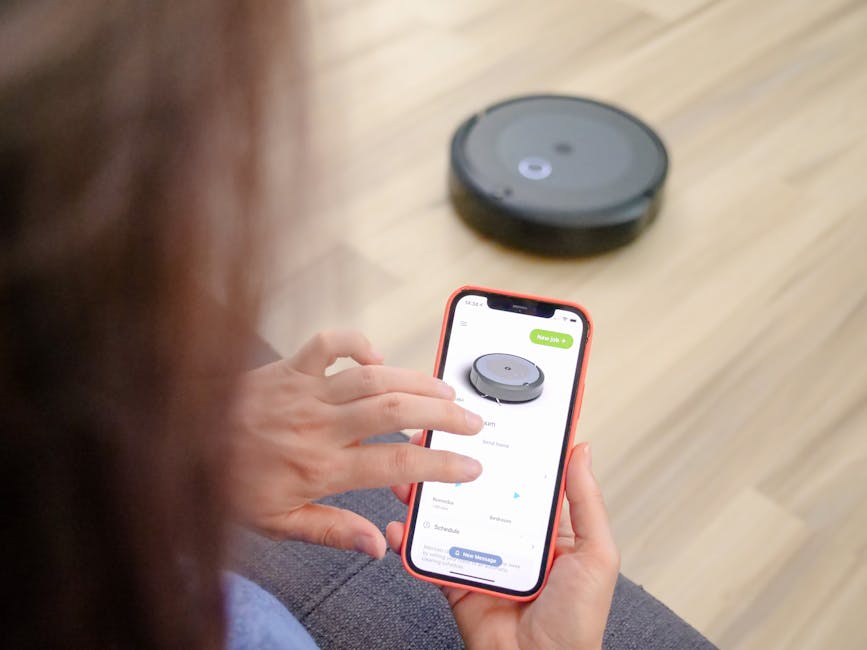
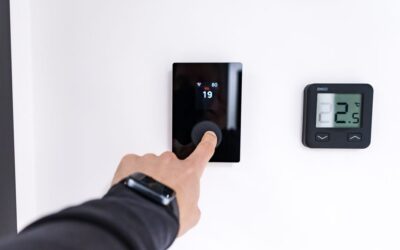
Most smart home apps present your devices on a main dashboard or home screen. From here, you can control individual devices with simple taps. For lights, you might see options to turn them on or off, adjust brightness, or change colors. For thermostats, you can view the current temperature and adjust the setpoint. For locks, you can see the lock status and control locking or unlocking. Spend time exploring these basic controls to understand what each device can do.
Using Voice Commands for Hands-Free Control
Most smart home platforms integrate voice control through their virtual assistants. You can use voice commands to control your devices without opening an app. Say something like “Alexa, turn off the living room lights” or “Hey Google, set the thermostat to 72 degrees.” Voice control is particularly useful when your hands are full, you’re in bed, or you simply want quick control without navigating through menus. Practice using voice commands regularly to make them second nature.
Setting Up Scenes and Routines
Most smart home apps allow you to create scenes or routines, which are groups of commands that execute together with a single tap or voice command. You might create a “Good Night” scene that locks all doors, turns off lights, and sets the thermostat to sleep mode. Or a “Leaving Home” routine that closes blinds, locks doors, and turns off all lights. These pre-programmed sequences save time and ensure consistency in how you control your smart home with your phone.
Creating Automations and Schedules
Automations take smart home control to the next level by allowing your devices to respond to triggers without requiring you to manually control them. This is where your smart home truly becomes intelligent.
Time-Based Automations
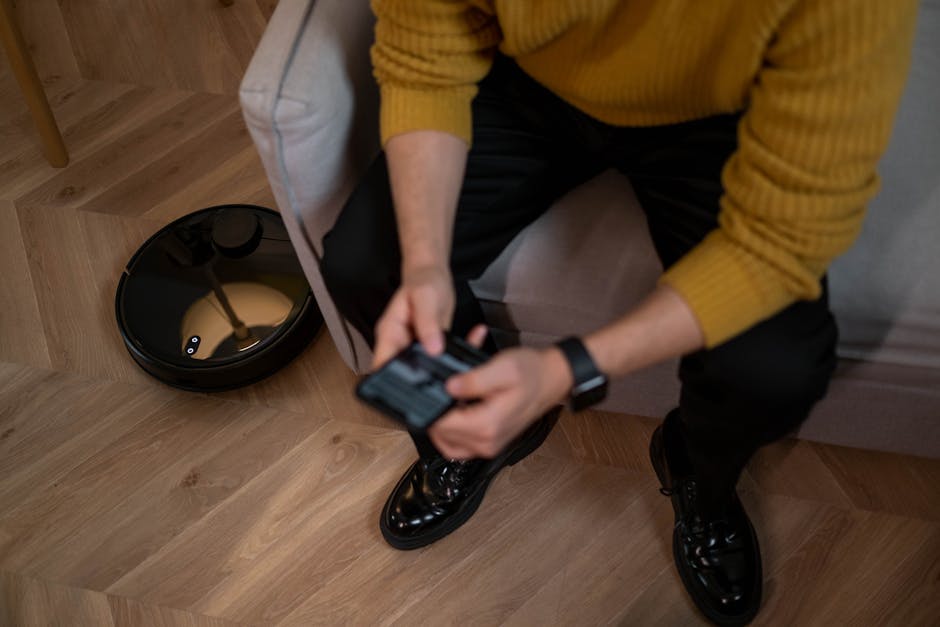
Schedule your devices to perform actions at specific times. For example, your lights can automatically turn on at sunset and off at 11 PM. Your thermostat can adjust to a lower temperature at 10 PM and return to your preferred setting at 6 AM. Your coffee maker can start brewing at 6:30 AM on weekdays. These time-based automations require no interaction from you and help establish routines that make your home more comfortable and efficient.
Trigger-Based Automations
Beyond time-based triggers, many smart home platforms support automations based on events or conditions. When you arrive home (detected by your phone’s location), lights can automatically turn on. When motion is detected in a room, a fan can turn on. When the temperature drops below a certain point, the heater can activate. When you leave home, all lights and devices can automatically turn off. These trigger-based automations make your home respond intelligently to your habits and needs.
Conditional Automations
Advanced automations can include multiple conditions. For example: “If it’s after 9 PM and motion is detected in the hallway, turn on the hallway light to 20% brightness.” Or “If I arrive home and it’s between 6 AM and 8 AM, turn on the coffee maker and set the thermostat to 72 degrees.” These sophisticated automations require more setup but provide powerful customization that makes controlling your smart home with your phone feel truly personalized.
Controlling Your Smart Home Remotely
One of the most powerful features of controlling your smart home with your phone is the ability to do so from anywhere in the world, not just from within your home. Remote access requires proper configuration and security considerations.
Enabling Remote Access
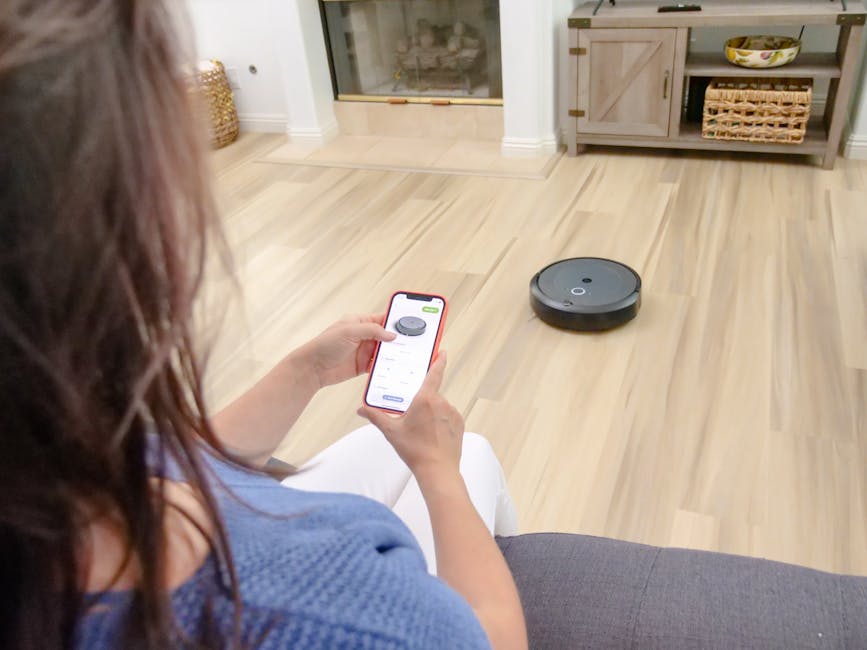
To control your devices when you’re away from home, you need to enable remote access in your app settings. This typically involves ensuring your smart home hub is online and connected to your cloud account. Most platforms require you to be logged into your account on your phone for remote access to work. Once enabled, you can control your devices from anywhere with an internet connection, whether you’re at work, on vacation, or anywhere else in the world.
Security Considerations for Remote Control
Controlling your smart home with your phone remotely requires strong security practices. Use a unique, strong password for your smart home account that you don’t use elsewhere. Enable two-factor authentication if your platform offers it. Be cautious about which family members or guests you grant access to your smart home system. Regularly review connected devices and remove any that you no longer use. Periodically check your account’s active sessions and log out of unfamiliar devices or locations.
Setting Up Multi-User Access
If you share your home with family members, most smart home apps allow you to invite other users and grant them access to control devices. You can typically set permission levels, allowing some users full control while restricting others to specific devices or capabilities. This is particularly useful for families with children or elderly parents who need access to certain features but shouldn’t have complete control over your entire system.
Pro Tips and Best Practices
Use Widget Shortcuts for Quick Access
Most smart home apps allow you to add widgets to your phone’s home screen or lock screen, giving you quick access to frequently controlled devices without opening the full app. Create widgets for the devices you control most often, such as your bedroom lights or front door lock, for lightning-fast access.
Test Your Automations Thoroughly
Before relying on automations for important functions like security or climate control, test them thoroughly to ensure they work as expected. Run through your automations manually and verify that devices respond correctly. Check both when you’re home and away to ensure remote functionality works properly.
Keep Your WiFi Network Strong and Stable
A reliable WiFi network is the foundation of effective smart home control. Position your router centrally, minimize interference from other electronics, and consider a mesh WiFi system if your home is large or has dead zones. A strong network ensures your devices respond quickly to commands from your phone.
Regularly Update Your Apps and Devices
Keep your smart home app and all device firmware updated to the latest versions. Updates often include new features, security improvements, and bug fixes that enhance your ability to control your smart home with your phone effectively and securely.
Create a Backup Plan for Power Outages
During power outages, your smart devices won’t function even if you can control them with your phone. Consider keeping backup solutions like battery-powered lights, manual door locks, or portable chargers to maintain basic functionality during emergencies.
Document Your Setup and Automations
Keep notes about your device names, automations, and configurations. This documentation helps you troubleshoot issues, onboard new family members, or quickly recall how you’ve set up specific features. A simple spreadsheet or note-taking app works perfectly for this purpose.
Common Mistakes to Avoid
Mixing Incompatible Ecosystems Without a Bridge
Buying smart devices from different manufacturers without a compatible hub or bridge can create frustration. While some devices work across platforms, many don’t. Before purchasing new devices, verify they’re compatible with your existing ecosystem or invest in a universal hub that can bridge different platforms. This prevents the headache of managing multiple apps and dealing with devices that won’t communicate with each other.
Neglecting Network Security
Using weak passwords, failing to enable two-factor authentication, and not updating your devices regularly creates security vulnerabilities. Smart home devices connected to the internet can potentially be exploited if not properly secured. Treat your smart home security as seriously as you would your home’s physical security.
Overcomplicating Automations
It’s tempting to create complex automations with multiple conditions and triggers, but overly complicated automations can malfunction or behave unexpectedly. Start simple and gradually add complexity. Test each automation thoroughly before moving on to the next. Simple, reliable automations are better than complex ones that occasionally fail.
Forgetting to Test Remote Access Before You Need It
Don’t assume remote access works until you’ve actually tested it from outside your home. If you’re away and suddenly need to control a device, discovering that remote access isn’t properly configured is frustrating. Test your remote access capabilities before you actually need them in an emergency.
Ignoring Battery-Powered Device Maintenance
Many smart home devices, such as door locks, motion sensors, and wireless remotes, run on batteries. Forgetting to check and replace batteries can leave you unable to control important devices. Set reminders to check battery levels regularly and keep spare batteries on hand for critical devices.
Conclusion
Learning how to control your smart home with your phone opens up a world of convenience, efficiency, and comfort. By following the steps outlined in this guide, you’ll be able to set up your devices, master your apps, create powerful automations, and enjoy seamless remote control of your entire home. The key is to start simple, choose compatible devices, maintain security, and gradually expand your system as you become more comfortable with the technology.
Remember that a well-designed smart home system should make your life easier, not more complicated. If you’re just starting your smart home journey, our comprehensive guide on how to set up a smart home from scratch provides additional foundational information. As you build your system, you’ll develop intuition about what automations and controls work best for your lifestyle, and you’ll discover new ways to use technology to enhance your home.
The future of home living is here, and it’s controlled by the device already in your pocket. Take the first step today, and transform the way you interact with your living space.
Frequently Asked Questions
Do I need a smart home hub to control my smart home with my phone?
Not always, but it’s highly recommended. Many WiFi-connected devices can be controlled directly through their apps without a hub. However, a hub enables more advanced features like remote access, automations, and the ability to control non-WiFi devices using protocols like Zigbee or Z-Wave. For most comprehensive smart home setups, a hub significantly improves functionality and reliability.
Can I control my smart home with my phone when I’m away from home?
Yes, as long as you have internet access and have properly enabled remote access in your app settings. Your smart home hub must be connected to the internet, and you need to be logged into your account on your phone. Remote access allows you to control devices from anywhere in the world, though there may be slight delays depending on your internet connection speed.
What should I do if my devices won’t respond to commands from my phone?
First, check that your device is powered on and connected to WiFi. Restart both your device and your router. Ensure your app is updated to the latest version and that you’re logged into your account. If the problem persists, try removing and re-adding the device to your app. If it’s a WiFi connectivity issue, try moving the device closer to your router or improving your WiFi coverage in that area.
Is it safe to control my smart home with my phone?
Yes, if you follow proper security practices. Use strong, unique passwords, enable two-factor authentication, keep your app and device firmware updated, and regularly review who has access to your system. Avoid connecting to public WiFi networks when controlling sensitive devices like door locks. Treat your smart home security as seriously as you would any other online account.
Can multiple people control my smart home with their phones?
Yes, most smart home platforms allow you to invite other users and grant them access to control your devices. You can typically set different permission levels for different users, allowing some people full control while restricting others to specific devices. This is perfect for families or households with multiple occupants.
What’s the best way to organize my devices in my smart home app?
Organize devices by room or functional area, and use clear, descriptive names that indicate both the device type and location. For example, use “Living Room Ceiling Light” instead of “Light 1.” Create scenes or routines for common activities. This organization makes controlling your smart home with your phone intuitive and efficient, especially as your system grows.


Write Your Review
No reviews yet. Be the first to share your experience!