
How to Set Up a Smart Home Security System in 2026?
Setting up a smart home security system in 2026 is easier than ever. Modern systems combine wireless cameras, door sensors, motion detectors, and cloud storage into one integrated platform. You can monitor your home from anywhere using your smartphone. Most systems install in under an hour without professional help. The cost ranges from $200 to $1,500 depending on the number of devices and features you choose. This guide walks you through every step to get your system running safely and securely.
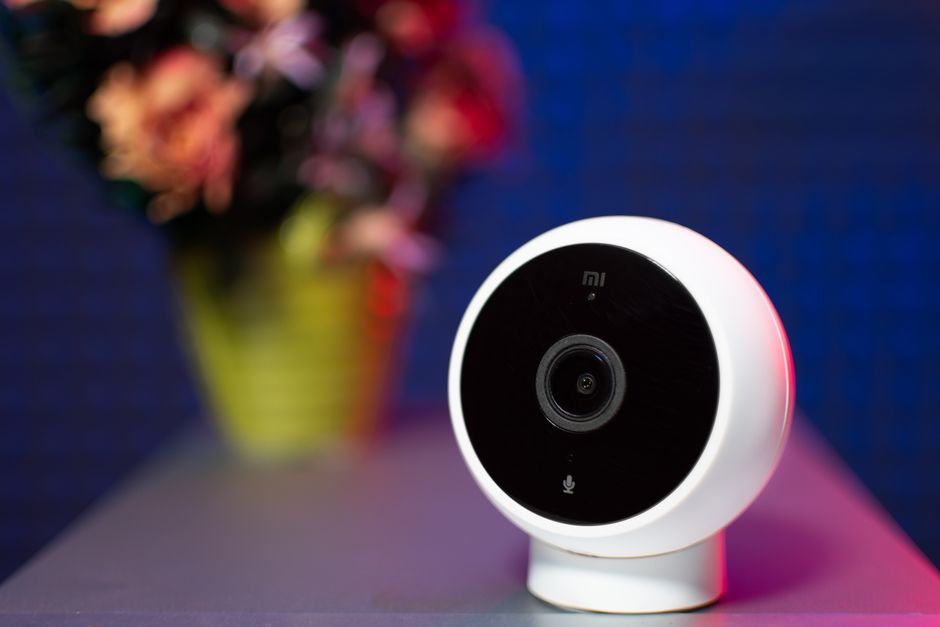
Smart home security has evolved dramatically. Today’s systems use artificial intelligence to distinguish between people, pets, and packages. They integrate seamlessly with voice assistants like Alexa and Google Home. Battery-powered devices mean no complex wiring. Cloud storage ensures your footage is backed up automatically. August 2026 brings enhanced privacy controls and faster setup processes than previous years.
What Components Do You Need for a Smart Home Security System?
A complete smart home security system includes multiple interconnected devices working together. Each component serves a specific purpose in protecting your home. Understanding what you need helps you plan your installation and budget accordingly.
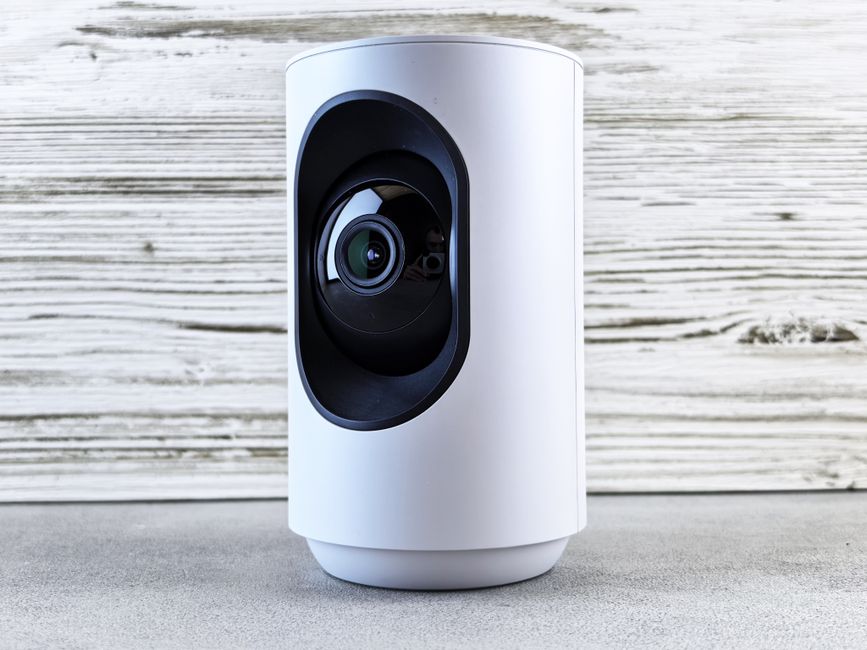
- Smart security cameras for video monitoring and recording.
- Door and window sensors to detect unauthorized entry.
- Motion sensors for detecting movement in specific areas.
- Smart lock for keyless entry and remote access control.
- Hub or control panel to connect all devices wirelessly.
- Alarm siren or speaker for alerts and deterrence.
Understanding the Hub and Control Center
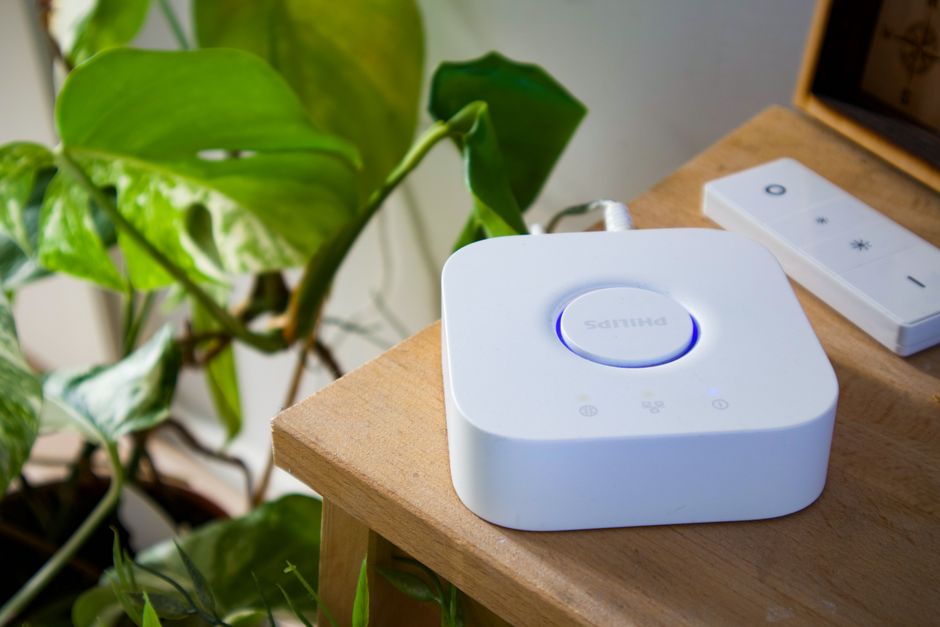
The hub is your system’s brain. It connects all wireless devices and manages communication between them. Most hubs support both WiFi and cellular backup for reliability. Some popular options include Ring Alarm, Wyze Sense, and SimpliSafe Base Station. The hub stores local backups and handles automation rules without internet dependency.
Look for hubs with dual-band WiFi support and battery backup. Battery backup ensures your system continues working during power outages. Cellular backup (LTE) provides monitoring even if your internet goes down. Most modern hubs support 50 to 100 connected devices simultaneously.
Choosing the Right Cameras
Smart security cameras are the eyes of your system. They record video, detect motion, and send alerts to your phone. Indoor cameras monitor living spaces, while outdoor cameras protect entry points. Resolution matters—1080p is standard, but 2K and 4K options provide clearer details. Night vision capability is essential for 24/7 monitoring.
- Indoor cameras: compact, WiFi-powered, perfect for living rooms and bedrooms.
- Outdoor cameras: weather-resistant, require power or rechargeable batteries.
- Doorbell cameras: replace existing doorbells, show visitors before you answer.
- Pan-tilt cameras: rotate to follow movement and cover wider areas.
Key Takeaway: Choose cameras with cloud storage options and local backup for redundancy.
How Do You Install Sensors and Detectors?
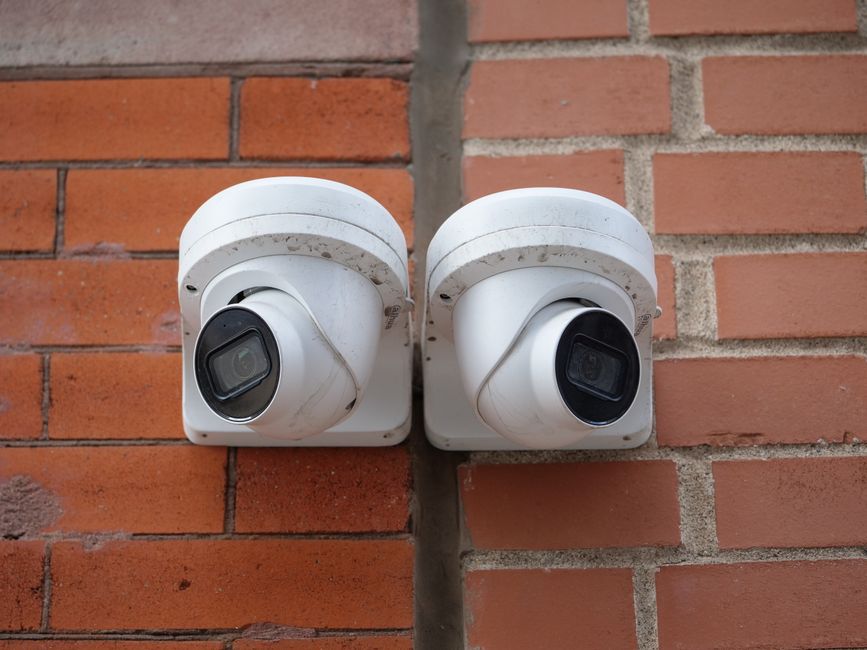
Sensors form the perimeter of your security system. Door and window sensors detect when entry points open. Motion sensors trigger alerts when movement occurs in protected areas. Installation is simple and requires no drilling or wiring in most cases. Adhesive strips mount sensors in seconds on any clean, flat surface.
Installing Door and Window Sensors
Door and window sensors have two parts: a magnet and a sensor unit. The magnet attaches to the door or window, while the sensor mounts on the frame. When the door opens, the magnet separates from the sensor, triggering an alert. Clean the mounting surface with rubbing alcohol before applying adhesive strips. Press firmly for 30 seconds to ensure secure adhesion.
- Place sensors on all exterior doors and ground-floor windows.
- Install secondary sensors on sliding glass doors and patio entrances.
- Use battery-powered wireless sensors to avoid wiring complications.
- Test each sensor after installation to confirm proper function.
Positioning Motion Sensors Effectively
Motion sensors detect movement within a specific range and angle. Mount them 5 to 7 feet high on walls for optimal coverage. Avoid pointing them directly at heat sources like radiators or air vents. Sensors work best when positioned to cover doorways and main pathways. Pet immunity settings prevent false alarms from pets under 25 pounds.
Test your motion sensors by walking through the detection zone. Verify that alerts reach your phone within seconds. Adjust sensor sensitivity if you experience false alarms from pets or curtain movement. Most systems allow you to arm and disarm specific sensors for flexibility.
Key Takeaway: Proper sensor placement eliminates false alarms and ensures comprehensive coverage.
What Are the Steps to Connect Everything to Your Hub?
Connecting devices to your hub is straightforward in 2026. Most systems use simple pairing processes through mobile apps. Your hub communicates with devices wirelessly, eliminating cable clutter. The entire setup typically takes 15 to 30 minutes per device. Ensure your WiFi network is stable before beginning the pairing process.
Pairing Cameras and Sensors
Start by downloading your security system’s official app on your smartphone. Create an account and sign in with a strong, unique password. Add your hub to the app by scanning a QR code or entering the device ID. Once the hub is connected, add cameras and sensors through the app’s pairing menu. Most devices enter pairing mode automatically when powered on for the first time.
- Open the app and select “Add Device” or “Pair New Device.”
- Choose the device type (camera, sensor, motion detector, etc.).
- Follow on-screen prompts to complete the pairing process.
- Wait for the app to confirm successful connection before moving to the next device.
- Name each device clearly (e.g., “Front Door Camera,” “Living Room Motion Sensor”).
Configuring Your WiFi Network
A strong WiFi network is essential for reliable smart home security. Position your hub in a central location for maximum coverage. Use the 2.4 GHz band for better range and device compatibility. Avoid placing the hub near microwaves, cordless phones, or other wireless devices. Test your WiFi signal strength in all camera locations before final installation.
Consider upgrading to a mesh WiFi system if your home is large or has thick walls. Mesh networks provide seamless coverage throughout your property. Most smart home hubs support both 2.4 GHz and 5 GHz bands. Separate SSIDs for each band can improve device connectivity and performance.
Key Takeaway: Strong WiFi connectivity prevents disconnections and ensures real-time alerts.
How Do You Set Up Mobile Monitoring and Alerts?
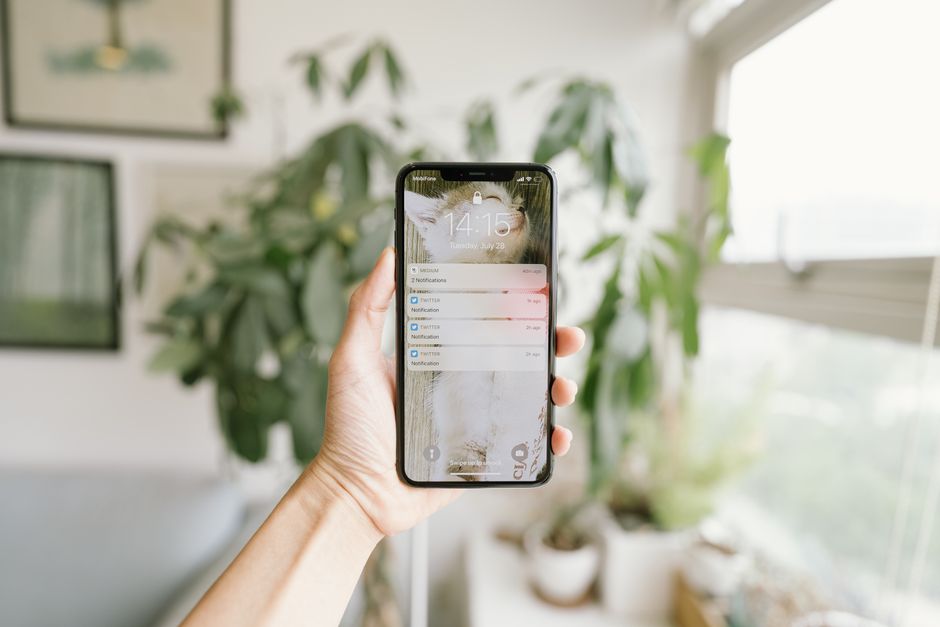
Mobile monitoring lets you watch your home from anywhere in the world. Push notifications alert you instantly when sensors trigger or motion is detected. Customize alert settings to match your lifestyle and preferences. You can arm and disarm your system remotely using your smartphone. Two-factor authentication adds an extra layer of security to your account.
Configuring Notification Settings
Open your security app and navigate to notification preferences. Enable push notifications for all critical events like door openings and motion detection. Choose which family members receive alerts for specific devices. Set quiet hours to prevent notifications during sleeping times. Create custom rules for different scenarios, such as alerting only when you’re away from home.
- Enable notifications for all entry point sensors and cameras.
- Set up SMS alerts as a backup if push notifications fail.
- Create automation rules that trigger cameras when motion is detected.
- Disable notifications for specific devices during certain hours.
- Test notifications by triggering sensors manually after setup.
Remote Access and Live Viewing
Live viewing allows you to watch camera feeds in real-time from your phone. Access your system from anywhere with an internet connection. Most apps buffer video for 2 to 5 seconds, showing nearly live footage. Two-way audio lets you speak through cameras to visitors or potential intruders. Record video clips directly to your phone for sharing with authorities if needed.
Create a secure password that combines uppercase, lowercase, numbers, and symbols. Enable biometric login using your fingerprint or face recognition for faster access. Regularly review login history to spot unauthorized access attempts. Log out of the app on unfamiliar devices to maintain security.
Key Takeaway: Mobile monitoring transforms your phone into a complete security command center.
What Are Best Practices for Smart Home Security Setup?
Proper setup ensures your system works reliably and securely. Following industry best practices protects your privacy and prevents vulnerabilities. These guidelines apply whether you’re installing your first system or upgrading an existing one. Regular maintenance keeps everything functioning optimally throughout the year.
Security and Privacy Considerations
Change all default passwords immediately after setup. Use unique, strong passwords for your security account and WiFi network. Enable two-factor authentication on your account for added protection. Review privacy settings in the app to control data sharing with third parties. Check which family members have access to your system and revoke unnecessary permissions.
- Update firmware regularly to patch security vulnerabilities.
- Disable cloud storage sharing for sensitive areas like bedrooms and bathrooms.
- Use VPN when accessing your system on public WiFi networks.
- Review video retention policies and delete old footage periodically.
- Enable encryption for all data transmission between devices and servers.
Placement and Coverage Tips
Position cameras to cover all entry points and high-value areas. Avoid pointing cameras at neighbors’ properties to respect their privacy. Mount cameras 8 to 10 feet high to prevent tampering and capture face-level details. Test camera angles before finalizing installation to ensure clear sightlines. Clean camera lenses monthly to maintain image quality and prevent false alerts.
Create overlapping camera coverage for critical areas like front doors and garages. This redundancy ensures you capture footage even if one camera fails. Position motion sensors near windows and doors where intruders typically enter. Use geofencing features to automatically arm your system when everyone leaves home.
Integration with Voice Assistants
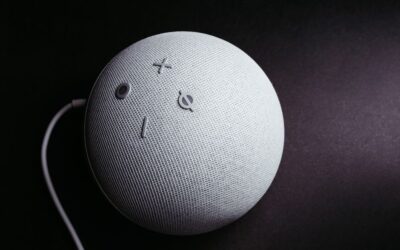
Connect your security system to Alexa or Google Home for voice control. Say commands like “Alexa, arm my security system” for hands-free operation. Voice assistants can trigger routines that arm cameras and lock doors simultaneously. For more information on integration, see our guide on connecting smart devices to Google Home.
Key Takeaway: Best practices prevent security breaches and ensure reliable protection year-round.
How Do You Troubleshoot Common Setup Problems?
Technical issues are common during initial setup but are usually easy to fix. Most problems stem from WiFi connectivity, device pairing, or app configuration. Systematic troubleshooting resolves issues quickly without professional help. Keep your hub’s documentation nearby for reference during problem-solving.
Connectivity and Pairing Issues
If devices won’t pair with your hub, restart both the device and hub. Move closer to the hub during pairing to ensure strong signal strength. Check that your WiFi password is entered correctly in the app. Verify that your WiFi network supports the 2.4 GHz band, which most smart devices require. Factory reset the device and try pairing again if problems persist.
- Restart your WiFi router and wait 2 minutes before pairing devices.
- Remove any obstacles between the device and hub during pairing.
- Disable WiFi band steering to prevent devices from switching frequencies.
- Check the app for firmware updates that might improve compatibility.
- Contact manufacturer support if pairing fails after multiple attempts.
App and Notification Problems
If you’re not receiving notifications, check that push notifications are enabled in your phone’s settings. Verify that the security app has permission to send notifications. Log out of the app completely and log back in to refresh the connection. Clear the app’s cache through your phone’s settings menu. Update the app to the latest version available in your app store.
Live viewing may lag if your WiFi signal is weak or your internet speed is slow. Move your hub closer to your router or upgrade to a mesh WiFi system. Reduce the video resolution in the app to improve streaming performance. Close other apps consuming bandwidth before accessing live feeds.
Key Takeaway: Most setup problems have simple solutions involving WiFi, restarts, or app refreshes.
How Should You Maintain Your Smart Home Security System?
Regular maintenance keeps your system functioning reliably for years. Monthly checks catch problems before they affect your security. Firmware updates patch vulnerabilities and add new features. Battery replacement schedules prevent unexpected device failures. Document all maintenance activities for warranty purposes and troubleshooting reference.
Regular Maintenance Tasks
Check battery levels on all wireless devices monthly through your app. Replace batteries when they drop below 20 percent to avoid unexpected failures. Clean camera lenses with a soft, dry cloth to maintain image clarity. Inspect sensor adhesive quarterly and re-apply if it loosens. Test your entire system monthly by triggering sensors and verifying notifications.
- Update firmware on your hub and devices whenever updates are available.
- Review cloud storage usage and delete old footage to save space.
- Test backup internet connectivity (cellular or WiFi hotspot) quarterly.
- Verify that geofencing and automation rules still match your lifestyle.
- Change your security account password every 6 months for optimal security.
Seasonal Adjustments
Adjust motion sensor sensitivity during winter when leaves fall and branches move. Clean outdoor camera lenses more frequently during dusty or pollen seasons. Check that weatherproofing seals remain intact on outdoor devices. Test night vision cameras to ensure they adapt properly to seasonal darkness changes. Update your system documentation if you add or remove devices seasonally.
Key Takeaway: Monthly maintenance prevents failures and keeps your system operating at peak performance.
Frequently Asked Questions
Do I Need Professional Installation for a Smart Home Security System?
No, most modern smart home security systems are designed for DIY installation in 2026. Wireless devices require no drilling or wiring, making setup simple and fast. Professional installation is optional if you prefer expert help or have complex requirements. Many providers offer free phone support during setup to guide you through the process. Most homeowners complete installation in one to two hours without professional assistance.
What Internet Speed Do I Need for Smart Home Security?
A minimum of 5 Mbps upload speed is recommended for reliable smart home security. Most systems work fine with standard residential internet (25-50 Mbps). Multiple cameras streaming simultaneously may require 10-20 Mbps upload speed. Check your current internet speed at speedtest.net to verify adequacy. Contact your internet provider to upgrade if your speed is insufficient for your needs.
Can I Use Smart Home Security Without a Subscription?
Yes, many systems work without subscriptions but with limited features. Local storage and basic monitoring work without monthly fees. Cloud storage, professional monitoring, and advanced features typically require subscriptions ($10-30 monthly). Some manufacturers offer free trial periods to test premium features before committing. Evaluate your needs to determine whether subscription features justify the monthly cost.
How Do I Integrate Smart Locks with My Security System?
Most smart locks connect to the same hub as your cameras and sensors. Pair your smart lock through the security app using the same process as other devices. Enable remote unlock features in the app to control your lock from anywhere. Set up temporary access codes for guests or service providers through the lock settings. For detailed instructions, see our guide on installing smart locks on your front door.
What Should I Do If My System Is Hacked or Compromised?
Change your account password immediately and enable two-factor authentication. Review login history in your app to identify unauthorized access. Factory reset any compromised devices and re-pair them to your hub. Update all device firmware to the latest versions. Contact your security provider’s support team to report the incident and request additional security measures.
How Long Does Smart Home Security Footage Stay in Cloud Storage?
Cloud storage retention varies by provider, typically ranging from 24 hours to 30 days. Premium subscriptions often offer longer retention periods up to 60 or 90 days. Local hub storage provides additional backup independent of cloud services. Review your provider’s retention policy in the app settings. Download important footage manually if you need longer-term archival beyond automatic retention periods.
How Can You Maximize Your Smart Home Security System’s Effectiveness?
Maximizing effectiveness requires strategic placement, regular updates, and thoughtful configuration. Your system is only as strong as your weakest link, so comprehensive coverage is essential. Combine multiple security layers—cameras, sensors, alarms, and smart locks—for redundant protection. Regular testing ensures everything works when you need it most. Automation features like geofencing and scheduled arming reduce human error and improve response times.
Consider how your system integrates with other smart home devices. Smart thermostats can simulate occupancy when you’re away by adjusting temperatures. Smart lights can turn on automatically when motion is detected at night. Voice assistants provide convenient control and emergency communication options. For more information on smart home integration, explore our guides on using smart thermostats in apartments and sharing smart lock access with family members.
Document your system configuration including device locations, network settings, and access credentials. Keep this documentation in a secure location accessible to trusted family members. Review and update documentation whenever you add or remove devices. Create a backup list of all passwords and recovery codes in case you need emergency access. Test your backup access methods quarterly to ensure they work reliably.
Key Takeaway: A well-configured, regularly maintained smart home security system provides comprehensive protection and peace of mind.





Write Your Review
No reviews yet. Be the first to share your experience!