
How to Sync Smart Lights with Your TV in 2026: Quick Answer
Syncing smart lights with your TV creates immersive entertainment by matching light colors and brightness to on-screen content. Most systems use a central hub like Amazon Echo, Google Home, or dedicated apps that detect TV content through HDMI ports, streaming services, or camera-based detection. Popular methods include Philips Hue Play HDMI Sync, Hue Sync Box, and app-based automation with smart bulbs like LIFX or Wyze. The process typically takes 15-30 minutes and requires compatible smart lights, a hub or streaming device, and internet connectivity. Synchronization enhances movies, gaming, and sports viewing while adding ambiance to your entertainment space.
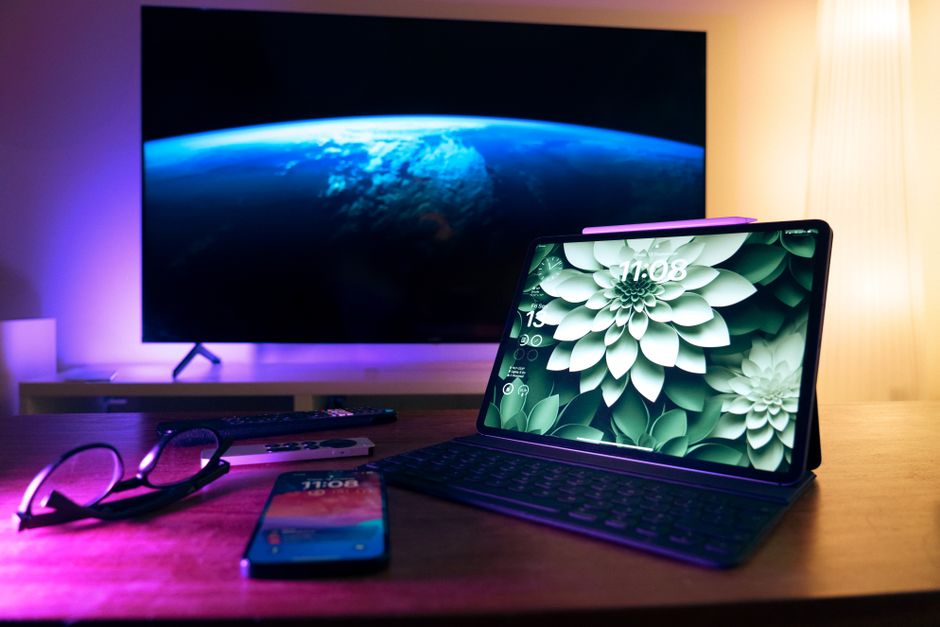
In July 2026, TV-light synchronization has become more accessible and reliable than ever. Smart home ecosystems have matured significantly, offering multiple pathways to achieve this effect. Whether you’re a casual viewer seeking mood lighting or a dedicated gamer wanting reactive lighting, solutions exist at various price points and complexity levels. Understanding your TV type, smart light ecosystem, and desired features helps you choose the right approach for your setup.
What Are the Main Methods for Syncing Smart Lights with Your TV?
Three primary approaches exist for TV-light synchronization in 2026. Each method offers different levels of accuracy, cost, and ease of setup. Your choice depends on your existing smart home infrastructure and budget constraints. Understanding these methods helps you select the best solution for your entertainment needs.
- HDMI Sync Box: Direct connection to TV via HDMI for real-time color matching and highest accuracy.
- App-Based Automation: Uses streaming app integration or manual scenes triggered during viewing.
- Camera Detection: Built-in or external cameras analyze on-screen content and adjust lights accordingly.
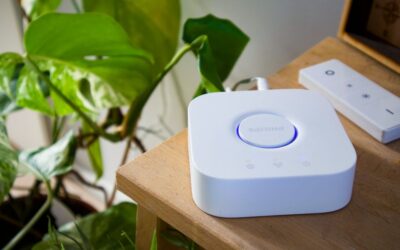
- Smart Hub Integration: Central devices like Amazon Echo or Google Home coordinate lights through automations.
HDMI Sync Box Technology
HDMI Sync Boxes represent the gold standard for TV-light synchronization. These devices connect between your TV and streaming device, analyzing video content in real-time. The Philips Hue Play HDMI Sync Box remains the market leader, supporting up to 10 Hue light zones. Installation requires connecting the box to your HDMI port and pairing it with compatible smart lights through the Hue app.
The Sync Box processes video signals at millisecond intervals, creating precise color matching. This technology works with any content source—streaming services, cable, gaming consoles, or Blu-ray players. Key Takeaway: HDMI Sync Boxes provide the most accurate and responsive TV-light synchronization available in 2026.
App-Based Automation Approaches
App-based methods offer flexibility without additional hardware. Most smart light manufacturers provide automation features within their apps. You can create scenes that activate when specific streaming apps launch or set schedules that align with your viewing habits. This approach works well for predictable viewing patterns and planned entertainment sessions.
Services like IFTTT (If This Then That) and home automation platforms enable advanced automations. You can trigger light changes based on time, app usage, or manual activation. While less precise than HDMI sync, app-based methods cost nothing extra and integrate with existing smart home setups. Key Takeaway: App-based automation provides budget-friendly TV-light synchronization without dedicated hardware.
Which Smart Lights and TV Devices Are Compatible in 2026?
Compatibility varies significantly across brands and product generations. In July 2026, most major smart light manufacturers offer TV synchronization features or support. However, not all combinations work seamlessly together. Checking compatibility before purchasing ensures your investment delivers the desired results without frustration.
- Philips Hue: Full support via Hue Sync Box or app-based automation with most TV brands.
- LIFX: App automation and third-party integration for TV synchronization without requiring a hub.
- Wyze: Budget-friendly option with app-based scenes and automation capabilities.
- Nanoleaf: Supports HDMI sync through third-party solutions and app-based control.
- GE Cync: Works with Google Home and Amazon Alexa for automation-based synchronization.
TV Compatibility Requirements
Most modern TVs work with smart light synchronization systems. Your TV needs HDMI ports if using a Sync Box, or internet connectivity if using app-based methods. Smart TVs (Samsung, LG, Sony, TCL) integrate more easily with automation systems. Non-smart TVs still work with HDMI Sync Boxes but cannot trigger automations directly through their interface.
Streaming devices matter significantly for app-based synchronization. Roku, Apple TV, Amazon Fire Stick, and Google Chromecast all support automation triggers. Gaming consoles (PlayStation 5, Xbox Series X) work with HDMI Sync Boxes for reactive lighting during gameplay. Check your specific device’s app compatibility before setting up automation rules. Key Takeaway: Most 2026 TVs and streaming devices support smart light synchronization through one method or another.
How Do You Set Up Smart Light and TV Synchronization Step by Step?
The setup process varies by method, but all approaches follow similar logical steps. Preparation and organization make the installation smoother and faster. Most users complete basic setup within 30 minutes, though fine-tuning preferences may take additional time. Follow these steps for your chosen synchronization method.
Setup for HDMI Sync Box Method
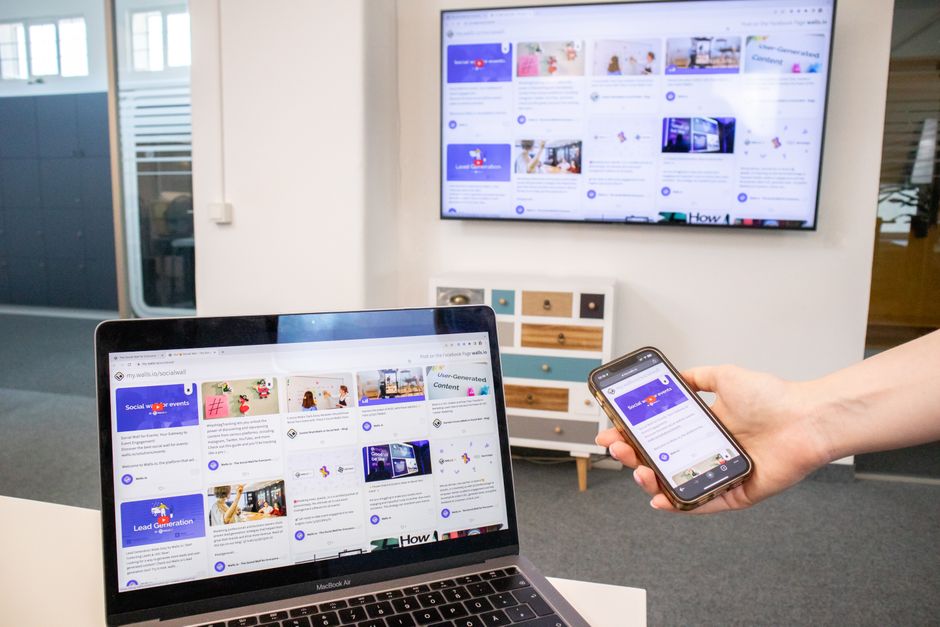
Start by gathering your equipment: the Sync Box, HDMI cables, your TV, and compatible smart lights. Position the Sync Box near your TV for optimal camera performance if using camera-based detection. Connect one HDMI cable from your streaming device to the Sync Box input, then connect another cable from the Sync Box output to your TV’s HDMI port. Power on the Sync Box and wait for initialization, typically 30-60 seconds.
Download the Philips Hue app and create or log into your account. Navigate to the Sync section and add your Sync Box. The app guides you through pairing nearby Hue lights automatically. Position lights strategically around your TV—behind the screen and on sides works best for immersive effect. Test synchronization by playing content and adjusting light zones through the app settings. Fine-tune intensity and color saturation based on your preferences.
Setup for App-Based Automation
Begin by ensuring all smart lights are installed and connected to your home Wi-Fi network. Download the smart light manufacturer’s app and add your lights to the system. Open your streaming app (Netflix, Hulu, YouTube, etc.) and verify it’s installed on your smart TV or streaming device. Check if the smart light app offers direct streaming app integration—some newer versions include built-in support.
If direct integration isn’t available, create manual scenes in your smart light app. Name scenes descriptively: “Movie Mode,” “Gaming Lights,” “Sports Viewing,” etc. Configure colors and brightness for each scene. Then use your TV’s or streaming device’s voice assistant to trigger these scenes before viewing. Alternatively, set schedules that activate specific scenes during your typical viewing times. Test each scene and adjust colors until you achieve your desired ambiance.
What Troubleshooting Steps Fix Common Synchronization Issues?
Synchronization problems usually stem from connectivity, compatibility, or configuration issues. Most problems resolve quickly with systematic troubleshooting. Understanding common issues helps you resolve them independently without contacting support. Start with the simplest solutions before attempting advanced fixes.
- Lights not responding: Verify Wi-Fi connection and restart both lights and hub device.
- Sync Box not detecting content: Check HDMI cable connections and ensure streaming device is powered on.
- Colors not matching: Calibrate lights through app settings and adjust color temperature preferences.
- Intermittent synchronization: Update firmware for all devices and reduce Wi-Fi interference.
- App crashes during automation: Clear app cache and reinstall if issues persist after restart.
Connectivity and Network Solutions
Most synchronization failures relate to network connectivity issues. Ensure your home Wi-Fi network is stable and your router is positioned centrally. Smart lights and hubs require consistent 2.4GHz or 5GHz connection depending on device specifications. Move your router away from microwaves and cordless phones that cause interference. Check signal strength in your entertainment area—aim for at least -70 dBm signal quality.
Restart your entire smart home system in this order: unplug your Wi-Fi router, wait 30 seconds, plug it back in. Once online, restart your smart light hub, then restart individual lights. Finally, restart your streaming device. This sequence reestablishes proper connections and resolves most temporary glitches. If problems persist, check for firmware updates for all devices through their respective apps. Key Takeaway: Network stability is essential for reliable smart light and TV synchronization.
Configuration and Compatibility Fixes
Verify that all devices support the synchronization method you’re using. Check manufacturer websites for compatibility lists specific to your device models. Some older smart lights don’t support certain features released in 2026. Update all apps and device firmware to the latest versions, as manufacturers regularly improve compatibility and add features.
If using app-based automation, verify that your streaming app is installed on the correct device (TV or streaming device). Some automations only work when triggered from specific apps. Test synchronization with different content sources to identify if the problem is device-specific. Try creating a simple scene first, then gradually add complexity once basic synchronization works reliably.
What Advanced Features Enhance Your TV-Light Synchronization Experience?
Beyond basic color matching, 2026 smart light systems offer sophisticated features that elevate entertainment. These advanced options create more immersive experiences and personalized preferences. Exploring these features helps you maximize your investment in smart lighting technology. Most features require minimal additional setup once basic synchronization works.
- Dynamic brightness adjustment: Lights dim automatically during dark scenes and brighten during action sequences.
- Multi-zone synchronization: Different light zones display different colors for cinematic surround effect.
- Reactive gaming modes: Lights respond to in-game events with millisecond precision during gameplay.
- Personalized color profiles: Save custom color schemes for different content types or moods.
- Voice control integration: Trigger scenes and adjust synchronization using voice commands.
Creating Immersive Entertainment Zones
Position smart lights strategically to create cinematic surround effects. Place lights behind your TV to reduce eye strain and create ambient glow. Add side lights pointing toward walls for wider color distribution. Overhead lights can provide general ambiance while focused lights handle primary color matching. This multi-zone approach creates depth and immersion that single-light setups cannot achieve.
Configure each light zone independently through your app. Assign different roles: primary color matching for the main zone, accent lighting for secondary zones. Adjust intensity so primary zones dominate while secondary zones complement without overwhelming. Test different configurations with various content types—movies, sports, and gaming may benefit from different zone priorities. Save successful configurations as presets for quick activation.
Gaming-Specific Synchronization
Gaming represents the most demanding use case for TV-light synchronization. Modern gaming consoles and PCs support HDMI Sync Boxes with millisecond response times. Fast-paced games benefit tremendously from reactive lighting that responds to explosions, gunfire, and environmental changes. Configure gaming-specific light profiles that emphasize responsiveness over smooth transitions.
Enable “game mode” in your Sync Box settings if available, which prioritizes speed over color accuracy. Adjust light sensitivity to match your game preferences—some prefer subtle changes while others want dramatic reactions. Test different games to understand how lighting responds to various visual elements. Create separate gaming profiles for different game genres if your system supports multiple configurations. For more gaming tips, see our guide on using smart lights for ambiance and mood.
How Can You Optimize Smart Lights for Different Content Types?
Different entertainment content benefits from distinct lighting approaches. Movies, sports, gaming, and casual viewing each have unique lighting characteristics that enhance the experience. Optimizing for specific content types requires understanding what works best for each scenario. Creating content-specific profiles helps you achieve ideal results consistently.
Movie and Streaming Optimization
Movies benefit from smooth color transitions and moderate brightness levels. Configure your lights to follow the overall mood of scenes rather than reacting to every visual element. Reduce sensitivity settings so lighting changes feel cinematic rather than distracting. Darker movies (dramas, thrillers) work well with subtle lighting, while action films benefit from more dramatic color shifts.
Create a “Movie Mode” scene with warm colors and reduced brightness for evening viewing. Enable gradual transitions in your app settings so colors shift smoothly rather than abruptly. Position lights to avoid direct view—ambient lighting works better than bright direct illumination during movies. Test your settings with a favorite film and adjust based on personal preference. Key Takeaway: Movie synchronization succeeds through subtle, smooth lighting that complements rather than dominates the viewing experience.
Sports and Live Event Optimization
Sports content features rapid color changes, quick cuts, and dynamic action. Enable higher sensitivity settings so lights respond quickly to scoring, celebrations, and dramatic moments. Increase brightness levels compared to movie settings since sports viewing typically occurs during daytime or well-lit rooms. Team colors provide natural synchronization cues that make sports lighting particularly effective.
Create profiles for your favorite teams using their official colors. Configure lights to emphasize these colors when your team plays. Enable sound-reactive features if your system supports them—crowd noise and commentary can trigger additional light effects. Test during an actual game and adjust sensitivity until lighting feels appropriately responsive without being overwhelming.
What Should You Know About Privacy and Security with TV-Light Synchronization?
Smart light synchronization systems collect data about your viewing habits and entertainment preferences. Understanding privacy implications helps you make informed decisions about your setup. Most reputable manufacturers implement strong security measures, but reviewing privacy policies remains important. Taking basic precautions protects your data and ensures secure operation.
Check your smart light manufacturer’s privacy policy to understand what data is collected and how it’s used. Most companies collect viewing data only on local networks without transmitting personal information to cloud servers. Enable two-factor authentication on your smart home app accounts to prevent unauthorized access. Use strong, unique passwords for all smart home accounts. Consider creating a separate Wi-Fi network for smart home devices if your router supports guest networks.
HDMI Sync Boxes typically don’t transmit video content to external servers—they analyze content locally. App-based automation may require cloud connectivity depending on your setup. Review privacy settings in your smart light app and disable data collection features you don’t need. For additional smart home security insights, check our guide on using smart lights for home security.
Frequently Asked Questions
Do I need a smart hub to sync lights with my TV?
Not necessarily. HDMI Sync Boxes work independently without requiring a separate smart hub. App-based automation works with most smart light systems that connect directly to Wi-Fi. However, a hub like Amazon Echo or Google Home expands automation options and improves reliability. Choose based on your existing infrastructure and desired features.
Can I use non-Philips Hue lights with HDMI Sync Boxes?
Most HDMI Sync Boxes are proprietary to their manufacturers. Philips Hue Sync Box works exclusively with Philips Hue lights. Other brands may offer their own sync boxes or support app-based synchronization instead. Check compatibility before purchasing to ensure your lights work with your chosen sync method.
What’s the best budget option for TV-light synchronization?
App-based automation with LIFX or Wyze bulbs offers the most affordable approach. These systems require no additional hardware beyond the smart bulbs themselves. While less precise than HDMI Sync Boxes, app-based methods cost significantly less and work well for casual users. Budget around 40-80 dollars for quality smart bulbs.
How many lights do I need for effective synchronization?
Minimum of two lights—one behind or beside the TV and one accent light—creates noticeable effect. Three to four lights provide better immersion with dedicated zones. More lights enable sophisticated multi-zone setups but increase cost and complexity. Start with two lights and expand based on results and budget.
Does TV-light synchronization work with older TVs?
HDMI Sync Boxes work with any TV that has available HDMI ports, regardless of age. App-based automation requires smart TVs or modern streaming devices. Older non-smart TVs can use HDMI Sync Boxes but cannot trigger automations through their interface. Check your TV’s HDMI compatibility before purchasing sync equipment.
Can I control synchronization with voice commands?
Yes, most smart light systems integrate with Amazon Alexa and Google Assistant. You can trigger scenes using voice commands like “Alexa, start movie mode.” Voice control works best with app-based automation and hub-integrated systems. HDMI Sync Boxes typically require app control but integrate with voice assistants for indirect control. Check your specific system’s voice assistant compatibility.
How Can You Troubleshoot and Maintain Your TV-Light Synchronization System?
Regular maintenance ensures your synchronization system operates reliably over time. Software updates, firmware refreshes, and periodic testing keep everything running smoothly. Establishing maintenance habits prevents many common issues before they occur. Spending a few minutes monthly on upkeep saves hours of troubleshooting later.
Check for firmware updates monthly through each device’s app. Manufacturers release updates that improve compatibility, add features, and fix bugs. Enable automatic updates if your system supports this option. Test synchronization with different content sources quarterly to identify any degradation. Clean your Sync Box camera lens monthly if using camera-based detection—dust reduces accuracy. Review and update your automation rules seasonally as viewing habits change.
Keep your Wi-Fi network optimized by checking signal strength and interference periodically. Restart your entire smart home system quarterly to clear temporary glitches and refresh connections. Document your configuration settings and saved scenes—this helps if you need to reset devices or troubleshoot issues. Consider backing up your automation rules if your app supports export functionality.
Should You Invest in TV-Light Synchronization in 2026?
TV-light synchronization significantly enhances entertainment experiences, transforming passive viewing into immersive engagement. In July 2026, technology has matured enough that reliable solutions exist at multiple price points. The decision depends on your entertainment priorities, budget, and existing smart home infrastructure. Evaluating these factors helps you determine if synchronization is right for you.
Movie enthusiasts and gamers benefit most from synchronization, particularly those with dedicated home theater spaces. Casual viewers may find basic app-based automation sufficient without investing in expensive Sync Boxes. Budget-conscious users can start with affordable smart bulbs and app automation, upgrading to HDMI Sync Boxes later if desired. Consider your viewing frequency and entertainment preferences when calculating return on investment.
The technology’s reliability, ease of setup, and expanding ecosystem make it accessible to most users in 2026. Starting with app-based automation allows you to test synchronization without major investment. If you enjoy the effect, upgrading to HDMI Sync Box technology provides superior accuracy. Alternatively, explore complementary features like creating lighting scenes with smart bulbs or setting up circadian lighting to maximize your smart lighting investment. Key Takeaway: TV-light synchronization offers genuine entertainment enhancement and is worth exploring if you regularly watch movies, sports, or play games.
Write Your Review
No reviews yet. Be the first to share your experience!