
How to Automate Your Home with Google Home in 2026: A Quick Answer
Automating your home with Google Home in 2026 is simpler than ever. Start by setting up a Google Home device, connecting compatible smart devices to your WiFi network, and creating automation routines through the Google Home app. You can control lights, thermostats, door locks, and appliances using voice commands or scheduled routines. Google Home’s integration with thousands of smart devices makes it the ideal hub for whole-home automation. Most setup takes 30 minutes, and monthly costs depend only on your device choices—Google Home itself is free once purchased.
Google Home has evolved significantly since its launch. The 2026 version offers faster processing, better AI understanding, and deeper integration with smart home ecosystems. Unlike other platforms, Google Home prioritizes ease of use and broad device compatibility. Whether you’re a tech beginner or experienced user, you can build a custom automation system that fits your lifestyle and budget. This guide walks you through every step of the setup process and shares proven automation strategies.
What Equipment Do You Need to Get Started with Google Home Automation?
The foundation of any Google Home automation system starts with the right hardware. You’ll need a Google Home device—available in multiple sizes and styles—plus compatible smart devices you want to control. The beauty of Google Home is its flexibility; you can start small and expand gradually as your needs grow.
Essential Google Home Devices for 2026
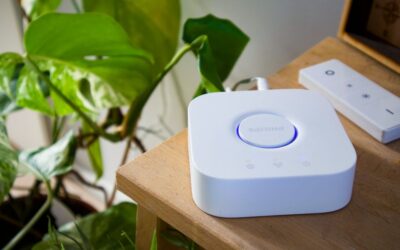
Google offers several Home device options. The Google Home Mini is compact and affordable, perfect for beginners. The standard Google Home provides better sound quality and more features. Google Home Max delivers premium audio for music lovers. For 2026, Google also offers the Nest Hub, a display-based device that shows information visually alongside voice control.
- Google Home Mini: Budget-friendly, fits tight spaces, basic automation control.
- Google Home: Mid-range option with better microphone and speaker quality.
- Google Home Max: Premium audio performance, larger footprint, advanced features.
- Nest Hub: Display screen shows weather, calendar, and smart home status.
- Nest Hub Max: Includes video calling and gesture recognition for hands-free control.
Key Takeaway: Choose a Google Home device based on room size, budget, and whether you want a display screen.
Compatible Smart Devices You Can Control
Google Home works with thousands of smart devices across multiple categories. Lighting brands include Philips Hue, LIFX, and Wyze. Thermostats include Nest, Ecobee, and Honeywell. Smart locks from August, Yale, and Level Lock integrate seamlessly. You can also control smart speakers, plugs, cameras, and appliances from brands like TP-Link, Kasa, and GE Appliances.
- Smart lights: Philips Hue, LIFX, Wyze, Google Nest lights.
- Thermostats: Google Nest, Ecobee, Honeywell Home, Carrier.
- Smart locks: August, Yale, Level Lock, Schlage Encode.
- Smart plugs: TP-Link Kasa, Wemo, Meross, Google Nest Mini Plug.
- Cameras: Google Nest Cam, Wyze, Logitech Circle, Arlo.
- Appliances: GE Appliances, LG ThinQ, Whirlpool, Samsung SmartThings.
Before purchasing any smart device, verify it’s compatible with Google Home through the official Google Home compatibility list. Most mainstream brands now support Google Home, but checking first saves frustration and money.
Key Takeaway: Google Home supports thousands of smart devices; verify compatibility before buying any new equipment.
How Do You Set Up Google Home and Connect Smart Devices?
Setting up Google Home takes about 15-30 minutes. The process involves downloading the Google Home app, creating or signing into your Google account, and connecting your device to WiFi. After that, you’ll add individual smart devices one by one. Following this systematic approach prevents connection problems and ensures smooth automation later.
Initial Google Home Device Setup
Start by plugging in your Google Home device and waiting for the lights to appear. Download the Google Home app on your smartphone from the App Store or Google Play. Open the app and sign in with your Google account. Select “Set up device” and follow the on-screen prompts. Choose your home WiFi network and enter your password. Place your Google Home device centrally in your home for best microphone performance and WiFi signal strength.
- Plug in Google Home device and wait 30 seconds for startup.
- Download and open the Google Home app on your phone.
- Sign in with your Google account credentials.
- Tap “Set up device” and select “Set up new device.”
- Choose your WiFi network and enter the password.
- Complete the voice setup and personalization prompts.
Once your Google Home device is online, test it by saying “Hey Google, what time is it?” If it responds, your setup is successful. You’re now ready to add smart devices to your home network.
Key Takeaway: Basic Google Home setup takes 15 minutes and requires only your Google account and WiFi password.
Connecting Smart Devices to Google Home
Each smart device requires its own setup process, but Google Home makes this streamlined. First, set up the smart device using its manufacturer’s app—this connects it to your WiFi network. Then, open the Google Home app and tap the plus icon to add a device. Select “Set up device” and choose “Works with Google.” Search for your device brand and follow the authentication steps.
For detailed WiFi connection guidance, check our guide on how to connect smart home devices to WiFi in 2026. This ensures all devices maintain stable connections to your network, which is essential for reliable automation.
- Set up each device using its manufacturer’s app first.
- Connect the device to your home WiFi network.
- Open Google Home app and tap the plus icon.
- Select “Set up device” then “Works with Google.”
- Search for your device brand and complete authentication.
- Assign the device to a room for better organization.
Key Takeaway: Connect devices to their manufacturer’s app and WiFi first, then link them to Google Home through the app’s integration system.
How Do You Create Automation Routines and Schedules?
Automation routines are the heart of smart home efficiency. A routine is a series of actions triggered by a single command, time, or condition. For example, saying “Good morning” could turn on lights, start your coffee maker, and read the weather. Routines save time, reduce manual control, and create consistent home environments. Google Home offers both preset routines and custom routines you can build yourself.
Building Custom Routines in Google Home
Open the Google Home app and navigate to the Routines section. Tap the plus icon to create a new routine. Name your routine something descriptive like “Morning Commute” or “Movie Time.” Choose the trigger—voice command, time of day, or device condition. Then add actions like turning on lights, adjusting temperature, or playing music. You can add up to 10 actions per routine.
For comprehensive routine guidance, see our article on how to create a smart home routine with Alexa in 2026. While that focuses on Alexa, many principles apply to Google Home routines as well, including timing strategies and multi-device coordination.
- Open Google Home app and select Routines section.
- Tap plus icon to create a new routine.
- Name your routine with a clear, descriptive title.
- Choose a trigger: voice command, time, or device condition.
- Add actions in sequence (up to 10 per routine).
- Test the routine before relying on it daily.
Popular Routine Ideas for Daily Automation
Morning routines can turn on lights gradually, adjust thermostat temperature, and read news headlines. Evening routines might dim lights, lock doors, and set security cameras. Leaving-home routines turn off lights and adjust the thermostat to save energy. Movie-time routines dim lights, close blinds, and silence notifications. Bedtime routines lower temperature, turn off all lights, and lock doors. Each routine can be customized to your specific preferences and device capabilities.
- Morning routine: Gradual lighting, temperature adjustment, news briefing.
- Evening routine: Lights dimming, door locking, security camera activation.
- Leaving home: All lights off, thermostat adjusted, front door locked.
- Movie time: Lights dimmed, blinds closed, notifications silenced.
- Bedtime: Temperature lowered, all lights off, doors locked and verified.
- Workout time: Motivational music, lights brightened, smart fan activated.
Key Takeaway: Create routines for recurring daily scenarios to automate multiple devices with a single voice command or scheduled time.
How Can You Optimize Your Smart Home for Energy Efficiency?
Smart home automation isn’t just convenient—it’s an excellent way to reduce energy consumption and lower utility bills. Google Home integrates with smart thermostats and lighting systems to create energy-efficient schedules. By automating temperature adjustments, lighting, and appliance usage, you can significantly decrease your home’s energy footprint. Many homeowners see 10-15% energy savings within the first month of smart automation.
Smart Thermostat Automation for Temperature Control
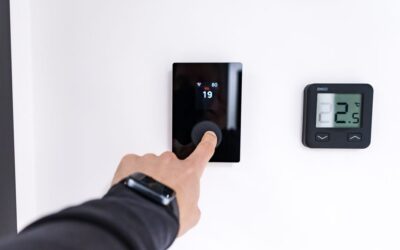
Smart thermostats like Google Nest learn your schedule and automatically adjust temperature to save energy. You can create routines that lower temperature when you leave home and raise it before you return. Setting different temperatures for sleeping hours versus waking hours saves substantial energy. For installation guidance, check our article on how to install smart thermostat without C-wire in 2026. This helps even if your home lacks a C-wire, which many older homes do.
- Set thermostat 2-3 degrees lower in winter when away from home.
- Program 1-2 degrees higher in summer when away to reduce AC usage.
- Create sleep routines that lower temperature by 3-4 degrees at bedtime.
- Use geofencing to adjust temperature based on your location.
- Enable learning mode so thermostat adapts to your preferences.
Automated Lighting Schedules for Energy Savings
Smart lights consume less energy than traditional bulbs and can be scheduled to turn off automatically. Create routines that turn off lights in unoccupied rooms. Use motion sensors to activate lights only when needed. Set sunset-to-sunrise schedules for outdoor lights to prevent all-night operation. For detailed lighting automation, see our guide on how to set up automated lighting schedules in 2026.
- Schedule lights to turn off automatically 30 minutes after sunset.
- Use motion sensors in low-traffic areas like bathrooms and closets.
- Dim lights during evening hours to reduce energy and promote sleep.
- Create time-based routines for different rooms throughout the day.
- Set brightness levels based on natural daylight availability.
Key Takeaway: Smart thermostat and lighting automation can reduce home energy consumption by 10-15% through scheduled adjustments and learning algorithms.
What Advanced Features Can You Use in 2026?
Google Home in 2026 offers advanced features beyond basic automation. Voice recognition can identify different family members and respond with personalized information. Geofencing triggers routines based on your location. Device groups let you control multiple devices simultaneously. Conditional routines execute actions only when specific conditions are met. These features create sophisticated automation systems that adapt to your lifestyle.
Voice Recognition and Personalized Responses
Google Home can recognize individual family members’ voices and provide personalized information. Your commute time, calendar, and preferences appear when you ask for information. Children can have restricted access to certain devices and content. You can set up voice shortcuts for complex multi-step routines. This personalization makes automation feel intuitive and tailored to each person in your home.
Geofencing and Location-Based Automation
Geofencing uses your smartphone’s location to trigger routines automatically. When you leave home, lights turn off and doors lock. When you approach home, lights turn on and the thermostat adjusts. Multiple family members can have different geofencing triggers. This feature requires location services enabled on your phone and the Google Home app running in the background. It’s one of the most powerful automation features for creating a truly responsive home.
Key Takeaway: Advanced features like voice recognition and geofencing create personalized, location-aware automation that responds to your movements and preferences.
How Do You Troubleshoot Common Google Home Automation Problems?
Even well-set-up systems occasionally encounter issues. Devices disconnect from WiFi, routines fail to execute, or voice commands go unrecognized. Most problems have simple solutions. Restarting devices, checking WiFi signal strength, and updating apps resolve 80% of issues. Understanding troubleshooting basics prevents frustration and keeps your automation running smoothly.
Device Connectivity Issues
If a smart device stops responding, first check your WiFi connection. Restart the device by unplugging it for 30 seconds, then plugging it back in. Open the device’s manufacturer app to verify it’s still connected to WiFi. If the device shows offline in both apps, restart your WiFi router. Move the device closer to your router temporarily to test if signal strength is the issue. If problems persist, remove the device from Google Home and re-add it through the setup process.
Routine Execution Failures
If a routine doesn’t execute when triggered, verify the trigger is set correctly. Check that all devices in the routine are online and responding. Test the routine manually by tapping it in the Google Home app. If it works manually but not automatically, the trigger might be misconfigured. Voice commands require clear pronunciation and proper phrasing. Time-based routines need correct timezone settings. Geofencing requires location services enabled on your phone.
Key Takeaway: Most Google Home automation problems resolve through device restarts, WiFi checks, and routine reconfiguration.
What Are the Best Practices for Secure Smart Home Automation?
Smart home security protects your privacy and prevents unauthorized access to your devices. Use strong, unique passwords for your Google account and all connected devices. Enable two-factor authentication on your Google account. Regularly update firmware on all smart devices. Disable features you don’t use, like microphones in devices that don’t need them. Review connected devices monthly and remove any you no longer use. These practices create a secure automation system that works reliably without compromising privacy.
- Use strong passwords with uppercase, numbers, and special characters.
- Enable two-factor authentication on your Google account.
- Update device firmware whenever updates are available.
- Review connected apps and devices in Google Home app monthly.
- Disable microphone access for devices that don’t need it.
- Use a separate WiFi network for smart devices if your router supports it.
Key Takeaway: Secure your smart home through strong passwords, two-factor authentication, regular updates, and monthly device reviews.
How Can You Monitor and Optimize Your Home’s Energy Use?
Beyond automation, Google Home integrates with energy monitoring tools to track consumption. Smart energy monitors provide real-time data on power usage. This information helps identify which devices consume the most energy and when. By understanding your consumption patterns, you can create more effective automation routines. For comprehensive energy tracking, see our guide on how to track energy use per appliance in 2026.
You can also conduct a home energy audit to identify inefficiencies. Our detailed guide on how to conduct a DIY home energy audit in 2026 walks through the process step-by-step. Additionally, explore how to maximize self-consumption of solar energy in 2026 if you have solar panels. For those interested in renewable energy, learn about how to save money with community solar programs in 2026.
Advanced monitoring lets you set energy reduction goals and track progress over time. Google Home can send notifications when consumption exceeds expected levels. Some smart devices include built-in energy monitoring that displays consumption in real-time. By combining automation with energy monitoring, you create a comprehensive system that saves money while reducing environmental impact.
Key Takeaway: Energy monitoring tools combined with smart automation help you understand consumption patterns and optimize routines for maximum savings.
What Is the Future of Google Home Automation Beyond 2026?
Google Home automation continues evolving with artificial intelligence improvements and expanded device compatibility. Future updates will likely include better predictive automation that anticipates your needs. Enhanced voice recognition will understand context and nuance more accurately. Integration with more appliance brands and home systems will expand possibilities. Battery-powered devices will improve, reducing wiring requirements. The smart home industry is moving toward seamless, invisible automation that works intuitively without constant user input.
Investment in Google Home automation today creates a foundation for future upgrades. The ecosystem is designed for backward compatibility, meaning new features work with older devices. As technology improves and prices decrease, expanding your system becomes easier and more affordable. Starting with basic automation now positions you to leverage advanced features as they become available.
Key Takeaway: Google Home’s evolving ecosystem supports future upgrades and new technologies, making it a smart long-term investment for home automation.
Conclusion: Is Google Home Automation Right for Your Home in 2026?
Google Home automation in 2026 offers unprecedented convenience, energy savings, and home control. Whether you’re a tech enthusiast or beginner, the platform’s intuitive interface and broad device compatibility make automation accessible to everyone. Starting with a single Google Home device and a few smart devices allows you to experience benefits immediately. As you become comfortable with basic automation, you can expand to include advanced features like geofencing and voice recognition. The investment is modest—many people start for under $100 and expand gradually as budget allows. By following the setup steps in this guide, you’ll have a fully functional smart home automation system within an hour. Your home will respond to your lifestyle, save energy, and provide security and convenience that traditional homes cannot match.



Write Your Review
No reviews yet. Be the first to share your experience!