
What Should You Know About Smart Meter Connection Problems in 2026?
Smart meter connection failures are one of the most common obstacles homeowners face when implementing home energy monitoring systems in 2026. The key issue is that smart meters rely on stable wireless communication—either through WiFi, cellular networks, or proprietary protocols—to transmit real-time energy consumption data to your utility provider and personal devices. When these connections drop, you lose visibility into your energy usage, preventing you from optimizing consumption patterns or taking advantage of time-of-use rates. Connection problems typically stem from signal interference, incorrect network credentials, outdated firmware, physical obstructions, or incompatible router settings. Understanding the root cause is essential because the solution varies dramatically depending on whether your issue is hardware-related, software-based, or environmental. In April 2026, utility companies have upgraded their infrastructure significantly, but many older smart meters still struggle with compatibility issues. By systematically diagnosing your connection problem, you can restore functionality within minutes rather than waiting for a technician visit.
Why Do Smart Meters Lose Connection and How Can You Identify the Problem?
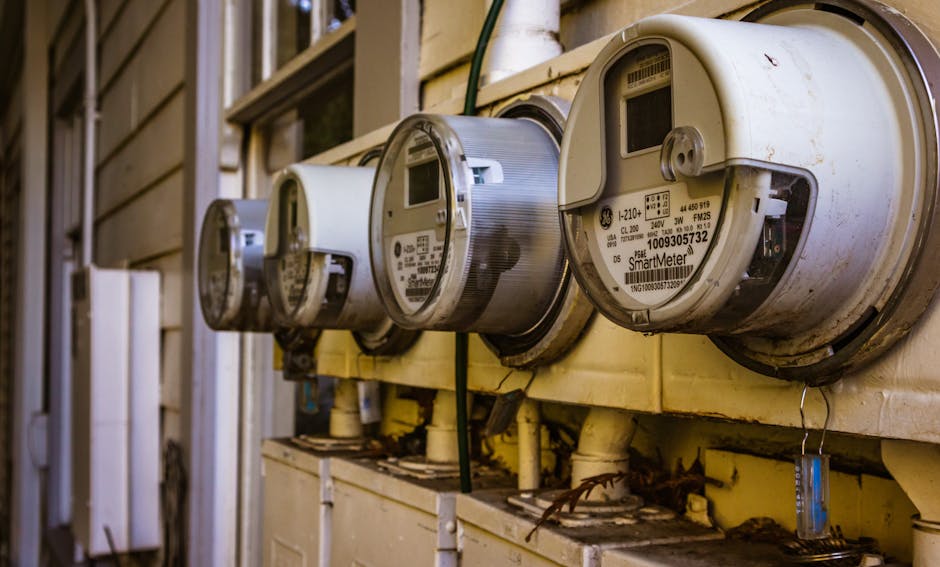
Smart meters disconnect for several interconnected reasons that compound when multiple factors align. The most common culprit is WiFi signal degradation, which occurs when your meter is installed too far from your router, blocked by metal objects, or competing with dozens of other wireless devices in your home. Modern homes in 2026 average 15-25 connected devices, creating significant congestion on the 2.4 GHz band that many smart meters use.
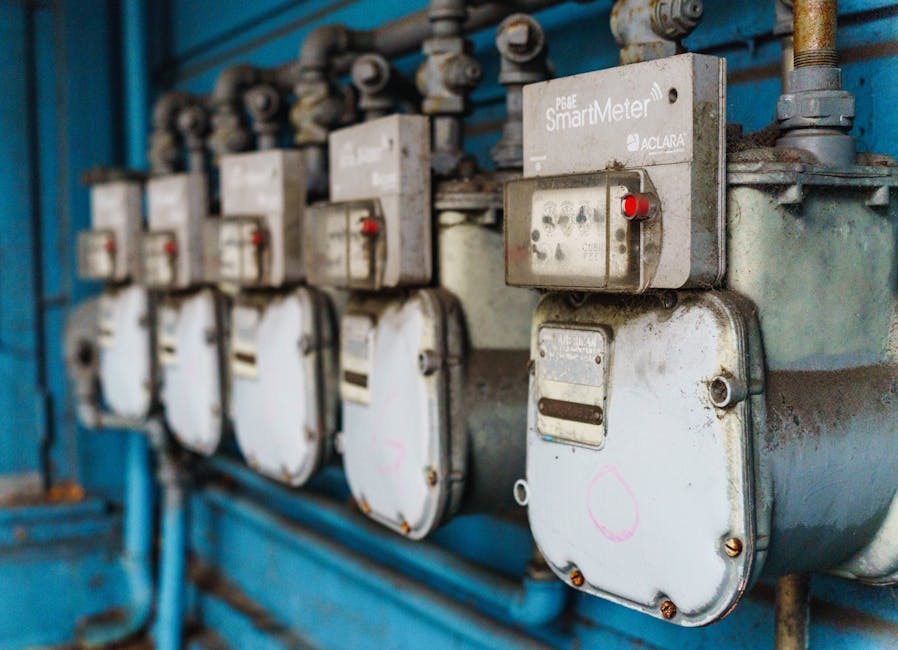
Firmware mismatches represent another critical failure point. If your utility provider pushes a software update but your meter hasn’t received it, incompatibility develops. Similarly, authentication failures happen when your WiFi password changes but the meter retains old credentials, or when your router’s security settings are too restrictive for the meter’s communication protocol.
Environmental interference is often overlooked but devastating. Microwave ovens, cordless phones, baby monitors, and even certain LED lights emit electromagnetic radiation that disrupts 2.4 GHz signals. Additionally, physical obstruction from concrete walls, metal plumbing, or electrical panels can attenuate signals by 30-50 decibels.
To identify your specific problem, start by checking the meter’s LED indicator lights. Most smart meters display status through color-coded lights: green indicates normal operation, amber suggests weak signal, and red signals complete disconnection. Note when disconnections occur—if they happen during specific times, you likely have interference from scheduled devices. If disconnections are random, suspect signal strength or firmware issues.
How Do You Diagnose WiFi and Network Connectivity Issues with Your Smart Meter?
Diagnosing network issues requires a systematic approach that isolates variables. Begin by checking your router’s proximity to the meter. Smart meters typically need to be within 30-50 feet of your WiFi router for reliable connection. If your meter is in a basement or garage far from your router, signal loss is inevitable. Use your smartphone to test signal strength at the meter’s location—if your phone shows weak WiFi bars, your meter will struggle even more due to its smaller antenna.
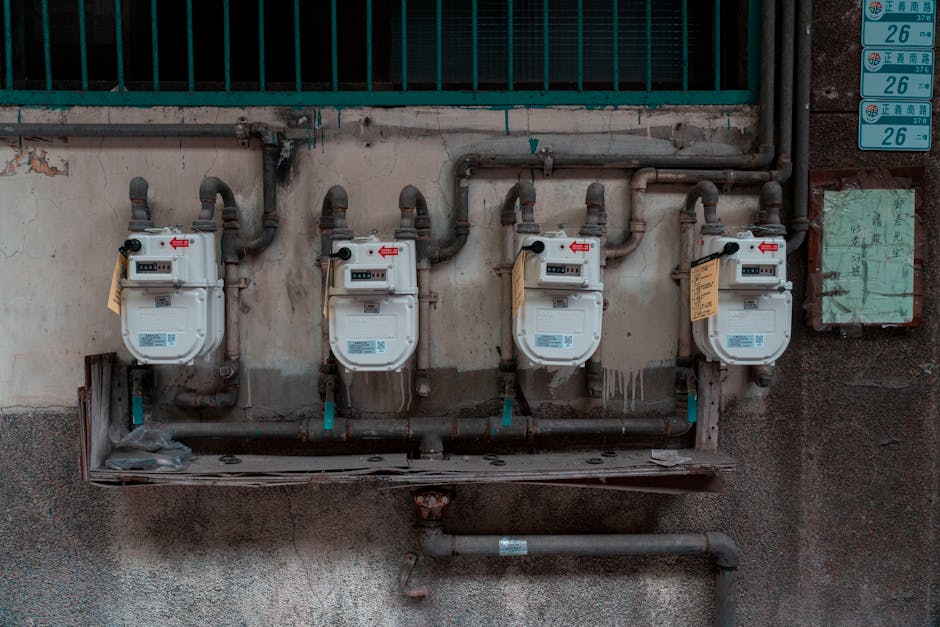
Next, verify your WiFi credentials are correctly stored in the meter. Access your meter’s configuration interface (usually through a mobile app or web portal provided by your utility). Confirm that the SSID and password match your current router settings exactly. Even a single character mismatch will prevent connection. If you’ve recently changed your WiFi password, this is almost certainly your problem.
Check your router’s security settings. Many modern routers in 2026 use WPA3 encryption, which some older smart meters don’t support. If your meter only supports WPA2, you may need to enable a separate 2.4 GHz band with WPA2 encryption specifically for IoT devices. Access your router’s admin panel (typically 192.168.1.1) and verify that your meter’s MAC address isn’t being blocked by MAC filtering.
Test channel interference by switching your WiFi channel. Most routers default to channels 1, 6, or 11 on the 2.4 GHz band, which are often congested. Use a WiFi analyzer app on your smartphone to identify which channels have the least interference in your area, then manually set your router to that channel. This simple change resolves 20-30% of connection issues.
Finally, restart your modem and router in the correct sequence. Power off your modem completely, wait 30 seconds, then power it back on. Once it’s fully booted (all lights stable), restart your router. Wait another 2-3 minutes before checking if your smart meter reconnects. This clears temporary network glitches that accumulate over time.
What Hardware and Firmware Solutions Fix Persistent Smart Meter Connection Problems?
If network diagnostics don’t resolve your issue, hardware and firmware problems are likely culprits. Firmware updates should be your first hardware-related fix. Access your utility provider’s online portal or the smart meter manufacturer’s app to check for available updates. In 2026, many utilities push updates automatically, but some require manual initiation. Ensure your meter has a stable WiFi connection before starting any update, as interruptions during firmware installation can permanently damage the device.
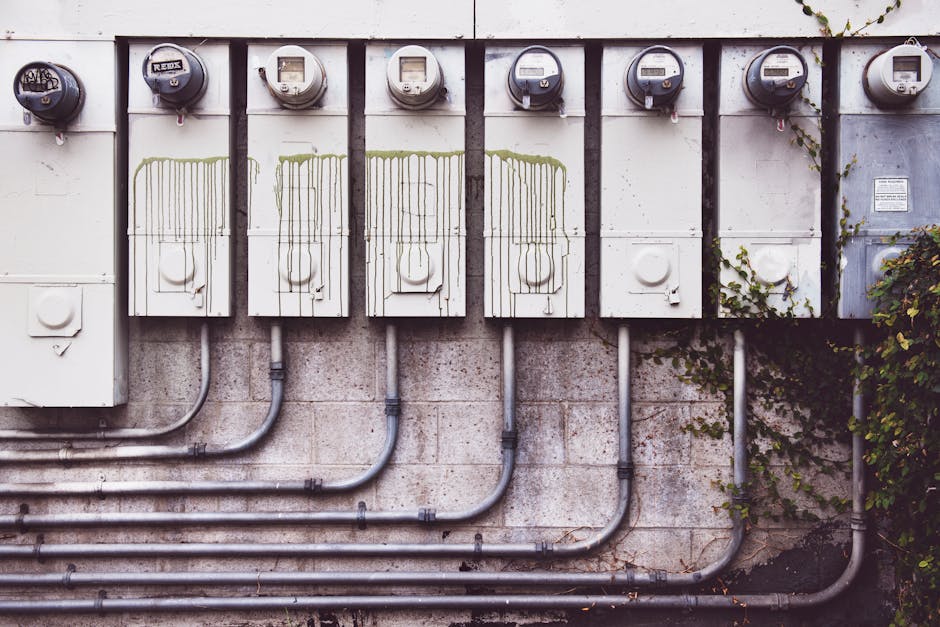
Battery and power issues are frequently overlooked. Smart meters contain backup batteries that maintain connection during power outages. If your meter hasn’t been powered for several days, the backup battery may have drained completely. Restore power and wait 15-20 minutes for the meter to fully boot and reconnect. Check the meter’s power connection—ensure the circuit breaker isn’t tripped and that no loose wires are present.
Hardware reset procedures can restore default settings when the meter becomes corrupted. Most smart meters have a small reset button (often recessed, requiring a paperclip) that initiates a factory reset. Hold this button for 10-15 seconds until the LED lights flash rapidly. After reset, you’ll need to reconfigure your WiFi credentials through the meter’s setup interface. This is a last-resort solution but resolves stubborn software conflicts.
SIM card or cellular module issues affect meters using cellular connectivity instead of WiFi. If your meter uses LTE or 5G, check that the SIM card is properly seated in its slot. Some cellular-enabled meters require activation through your utility provider’s website—contact them if you suspect SIM-related problems. In rural areas, 2026 coverage has improved significantly, but dead zones still exist.
If you’ve completed all these steps and your meter still won’t connect, contact your utility provider. They can remotely diagnose the issue and determine whether your meter needs replacement. Document all troubleshooting steps you’ve taken—this information helps technicians avoid repeating your work.
How Do You Resolve Environmental Interference and Physical Obstruction Problems?
Environmental interference is deceptively complex because multiple sources can combine to overwhelm your meter’s receiver. Start by identifying interference sources within 10-15 feet of your meter. Microwave ovens are the primary culprit—they operate on 2.4 GHz and can completely block WiFi signals when running. If disconnections coincide with microwave use, move your router away from the kitchen or install your meter in a different location.
Reduce physical obstructions by repositioning your router or meter if possible. Concrete walls attenuate signals far more than drywall. If your meter is in a basement surrounded by concrete, moving your router to a higher floor or closer to the meter can dramatically improve signal strength. Metal objects—water heaters, HVAC ducts, electrical panels—act as Faraday cages that block radio waves. Position your router away from these obstacles.
Upgrade to a mesh WiFi system if your home is large or has challenging layout. Mesh systems in 2026 offer superior coverage and automatically select the strongest path for data transmission. They also support more simultaneous connections without degradation, which is critical in homes with 20+ smart devices. Position mesh nodes strategically to ensure your meter location has strong signal.
Switch to 5 GHz WiFi if your meter supports it. The 5 GHz band experiences less interference from household devices and typically offers faster speeds. However, 5 GHz signals don’t penetrate walls as effectively as 2.4 GHz, so this solution only works if your meter has line-of-sight to your router. Check your meter’s specifications to confirm 5 GHz compatibility.
Install a WiFi extender or repeater specifically positioned between your router and meter. These devices amplify weak signals and can extend range by 30-50 feet. Ensure the extender operates on the same band (2.4 GHz or 5 GHz) as your meter’s receiver. Dual-band extenders in 2026 offer flexibility, but read reviews carefully—many introduce latency that disrupts time-sensitive meter communications.
How Do You Troubleshoot Smart Meter Connection Issues with Your Utility Provider?
Your utility provider maintains backend systems that must communicate with your meter for the connection to function. Even if your home network is perfect, provider-side issues can prevent connection. Check your utility’s status page first. Most major utilities maintain public dashboards showing service outages and maintenance windows. In April 2026, scheduled maintenance is common as providers upgrade infrastructure for increased smart meter density.
Verify your account information in the utility’s system. Access your online account and confirm that your meter’s serial number and MAC address are correctly registered. If you recently moved or had your meter replaced, registration delays can prevent connection for 24-48 hours. Contact your utility’s customer service to expedite registration if you’ve waited longer than two days.
Request a meter compatibility check from your utility. In 2026, utilities support dozens of meter models, and not all are equally compatible with their backend systems. Some older meters lack features required by newer utility software. Your provider can confirm whether your specific meter model is fully supported and whether firmware updates are available.
Ask about signal strength reports that utilities can generate remotely. Many providers can view the signal quality between your meter and their servers without visiting your home. If signal strength is consistently poor, they may recommend meter relocation or provide a signal booster device. Some utilities offer these boosters free to customers in areas with weak coverage.
Document communication with your utility including dates, times, and names of representatives you speak with. If your issue requires escalation to a technician, this documentation ensures continuity and prevents repeating explanations. Request a reference number for your service request so you can follow up if the issue isn’t resolved within the promised timeframe.
What Practical Steps Can You Take to Prevent Future Smart Meter Connection Problems?
Prevention is far more efficient than troubleshooting. Implement these practices to maintain reliable smart meter connectivity throughout 2026 and beyond.
Schedule regular router maintenance by restarting your router once monthly. This clears memory leaks and temporary connection states that accumulate over time. Perform restarts during low-usage periods (late evening or early morning) to minimize disruption. Document these maintenance events so you can identify patterns if problems develop.
Monitor your meter’s connection status proactively through your utility’s mobile app or web portal. Most apps display signal strength and last connection time. If you notice degrading signal strength over weeks, address the underlying cause before complete disconnection occurs. Early intervention prevents extended outages.
Keep your router’s firmware updated. Router manufacturers release updates that improve stability and compatibility with IoT devices. Enable automatic updates in your router settings, or manually check for updates quarterly. Outdated router firmware is responsible for 15-20% of smart meter connection issues in 2026.
Maintain a clear WiFi network by removing devices you no longer use. Each connected device consumes network resources and can introduce interference. Disable WiFi on phones, tablets, and laptops when they’re not actively being used. This reduces congestion and improves bandwidth available for your smart meter.
Position your router optimally for whole-home coverage. Place it in a central location at least 3-4 feet above floor level. Avoid enclosing it in cabinets or closets, which attenuate signals. Keep it away from microwaves, cordless phones, and other 2.4 GHz devices. If you’re building a new smart home in 2026, plan router placement during the design phase rather than retrofitting later.
Create a dedicated IoT network separate from your main WiFi network. Many modern routers support multiple SSIDs, allowing you to create a low-bandwidth network specifically for smart home devices. This isolates your meter and other IoT devices from streaming and gaming traffic that can overwhelm your network.
For comprehensive smart home setup guidance, review our complete smart home setup guide, which covers network planning from the ground up. Additionally, understanding how to reduce standby power and phantom loads helps you maximize the value of your smart meter once connection is stable.
How Should You Approach Smart Meter Troubleshooting Systematically?
Effective troubleshooting follows a logical sequence that eliminates variables methodically. Start with the simplest solutions first: verify your WiFi credentials, restart your router, and check the meter’s LED indicators. These basic steps resolve 40-50% of connection issues within minutes.
If basic solutions fail, move to network diagnostics: test signal strength at the meter’s location, check for interference sources, and verify router security settings. This phase typically takes 15-30 minutes and identifies whether your problem is network-related.
Next, attempt hardware-level solutions: update firmware, check power connections, and test battery backup. Allow 20-30 minutes for firmware updates to complete. If your meter is in standby mode waiting for power, wait 15-20 minutes after restoring power before concluding the fix didn’t work.
Finally, engage your utility provider if self-troubleshooting doesn’t resolve the issue. They have remote diagnostic tools and can view data you cannot access. Provide them with all troubleshooting steps you’ve already completed so they can focus on provider-side issues.
Document your troubleshooting process with dates, times, and results. If your issue becomes recurring, this documentation reveals patterns that point to root causes. For example, if disconnections always occur between 6-8 PM, you’ve identified an interference source active during that window.
Remember that some connection issues require multiple solutions working together. A weak signal combined with interference might require both router relocation and channel switching. Patience and systematic testing yield better results than random changes.
Frequently Asked Questions
Why does my smart meter keep disconnecting even after I’ve restarted my router?
Persistent disconnections after router restart usually indicate signal strength problems or interference rather than temporary glitches. Test signal strength at your meter’s location using your smartphone. If signal is weak, move your router closer or install a WiFi extender. If signal is strong, check for interference sources like microwave ovens or cordless phones that activate during specific times. Verify that your meter’s firmware is updated to the latest version available from your utility provider.
How can I tell if my smart meter’s battery is dead?
Smart meters with dead backup batteries typically fail to maintain connection during power fluctuations or outages. Check your meter’s LED indicator—if it’s completely dark and unresponsive, the battery may be depleted. Ensure your meter is receiving power from your home’s electrical system by checking the circuit breaker. If power is confirmed but the meter remains unresponsive, contact your utility provider for battery replacement. In 2026, most utilities replace dead batteries free of charge.
What’s the difference between 2.4 GHz and 5 GHz WiFi for smart meter connection?
2.4 GHz WiFi penetrates walls and obstacles better, making it ideal for meters in difficult locations. However, it experiences more interference from household devices. 5 GHz offers faster speeds and less interference but requires line-of-sight to your router and doesn’t penetrate walls effectively. Check your meter’s specifications to determine which band it supports. Most smart meters in 2026 support 2.4 GHz only, though newer models increasingly support dual-band operation.
Can I move my smart meter to improve WiFi signal?
Physical relocation of utility-owned smart meters is typically prohibited by your utility provider due to safety and accessibility requirements. However, you can improve signal at the meter’s current location by repositioning your router, installing a WiFi extender, or switching to a mesh network system. Contact your utility if you believe the meter’s location is genuinely problematic—they may approve relocation or provide signal-boosting equipment.
How long should I wait after a smart meter firmware update before expecting reconnection?
Allow 5-10 minutes for the meter to complete the update and restart. During this period, the LED indicator may flash or display unusual patterns. After 10 minutes, if the meter hasn’t reconnected, restart your router and wait another 5 minutes. If connection still fails after 15 minutes total, contact your utility provider—the update may have encountered an error requiring manual intervention.
What should I do if my utility provider says my meter is incompatible with their 2026 network?
Incompatibility typically means your meter model lacks features required by the utility’s updated backend system. Request a replacement meter from your utility—they’re obligated to provide compatible equipment at no charge. Ask about timeline for replacement and whether you’ll experience service interruptions during the swap. In the interim, document any energy data you can access locally to avoid losing consumption history.
Is Troubleshooting Your Smart Meter Connection Worth the Effort in 2026?
Absolutely. A functioning smart meter is foundational to modern home energy management in 2026. Without reliable connection, you lose visibility into real-time consumption, cannot optimize usage patterns, and miss opportunities to reduce energy costs through time-of-use rates. Most utility companies now offer rate structures that reward off-peak consumption—accessing these savings requires working smart meter connectivity.
The troubleshooting process, while sometimes frustrating, typically takes 30-60 minutes for homeowners to complete independently. This modest time investment prevents technician visit fees (often $75-150) and restores functionality immediately rather than waiting days for appointment availability. Additionally, the diagnostic skills you develop while troubleshooting your smart meter apply to other WiFi-connected devices throughout your home.
In 2026, smart meters are increasingly integrated with broader smart home ecosystems. Once your meter connection is stable, you can leverage it to inform decisions about automating appliances during off-peak hours and identifying individual appliance energy signatures. These capabilities compound the value of your smart meter investment.
If you’re just beginning your smart home journey, understand that smart meter connectivity is a prerequisite for sophisticated energy management. As you expand your system, refer to our guides on setting up a smart home from scratch and starting on a small budget to build a cohesive system where your smart meter serves as the central hub for energy decisions.
The troubleshooting methods outlined in this guide address 90% of smart meter connection issues without requiring professional intervention. By working through the diagnostic steps systematically, you’ll identify your specific problem and implement the appropriate solution. For the remaining 10% of cases requiring utility involvement, you’ll be well-positioned to communicate your issue clearly and avoid unnecessary technician visits.







Write Your Review
No reviews yet. Be the first to share your experience!