

How to Set Up Smart Home Devices for the First Time: Quick Answer
Setting up smart home devices in 2026 is straightforward: download the manufacturer’s app, connect your device to WiFi, create an account, and configure basic settings. Most devices take 5-15 minutes to activate. Start with one device like a smart speaker or light bulb, ensure your WiFi network is stable, and secure your setup with strong passwords. Avoid common mistakes like using weak credentials or placing devices too far from your router. Once you master the basics, you can expand to multiple devices and create automated routines that enhance convenience and energy efficiency throughout your home.
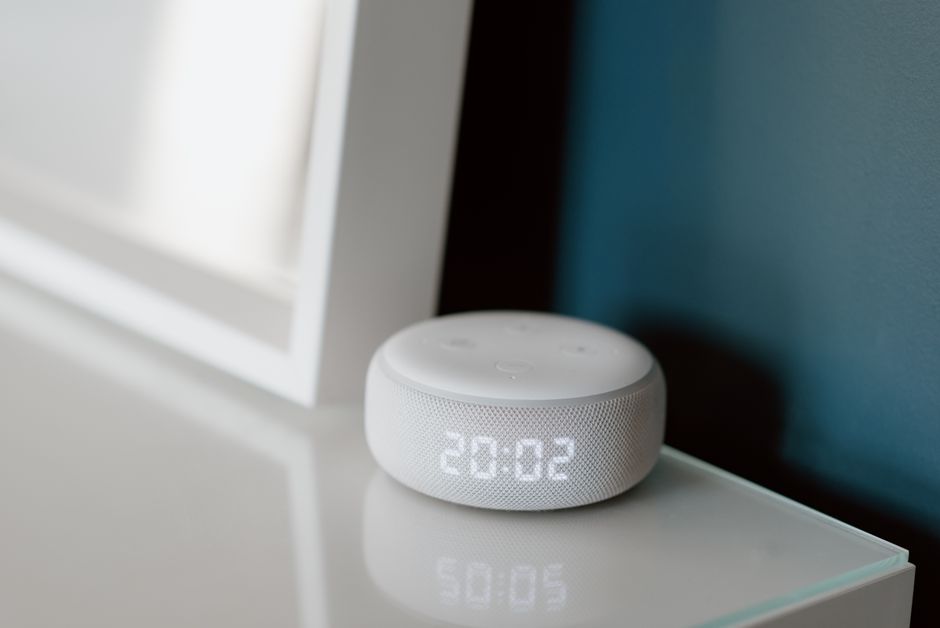
Smart home technology has evolved dramatically since its inception. In 2026, setup processes are more intuitive than ever, with most manufacturers offering mobile apps that guide you through each step. Whether you’re installing a smart speaker, thermostat, security camera, or lighting system, the fundamental approach remains consistent. Understanding this process removes the intimidation factor and helps you build a connected home that works for your lifestyle.
What Do You Need Before Setting Up Smart Home Devices?
Preparation is key to a smooth setup experience. Before you unbox your first device, gather the essential requirements that ensure successful installation and operation.
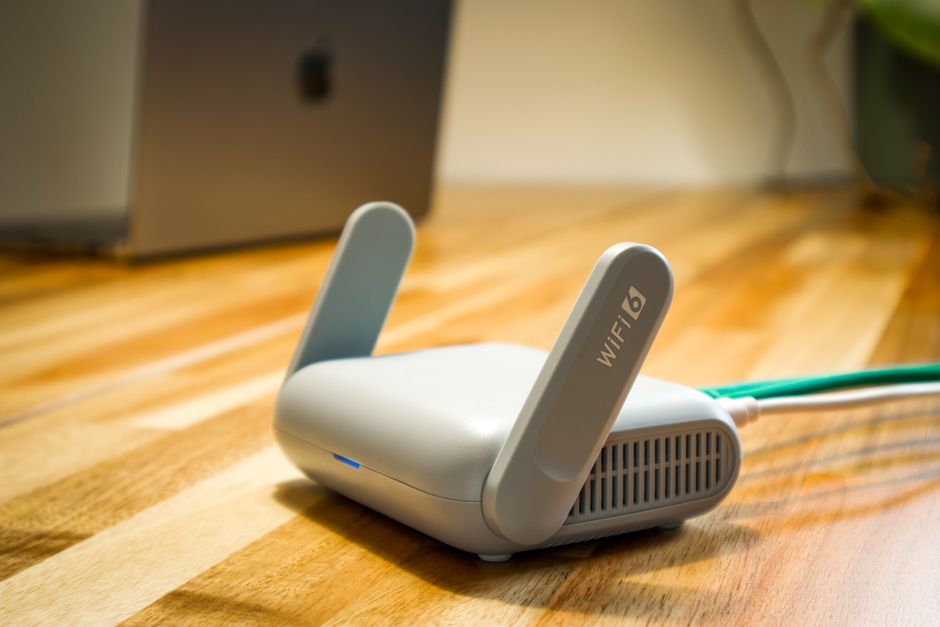
Your WiFi network forms the backbone of smart home connectivity. Ensure your router broadcasts a stable 2.4GHz or 5GHz signal throughout your home. Most smart devices in 2026 support both frequencies, though some older devices may require 2.4GHz exclusively. Test your signal strength in the room where you plan to install your device using your smartphone’s WiFi analyzer app.
- Stable WiFi network with strong signal coverage in device location
- Smartphone or tablet with iOS or Android operating system
- WiFi network name (SSID) and password readily available
- Valid email address for creating manufacturer account
- Power outlet near device installation location
- Backup codes or two-factor authentication method for security
Key Takeaway: Verify your WiFi stability and gather login credentials before beginning any device setup.
Choosing Your First Smart Home Device
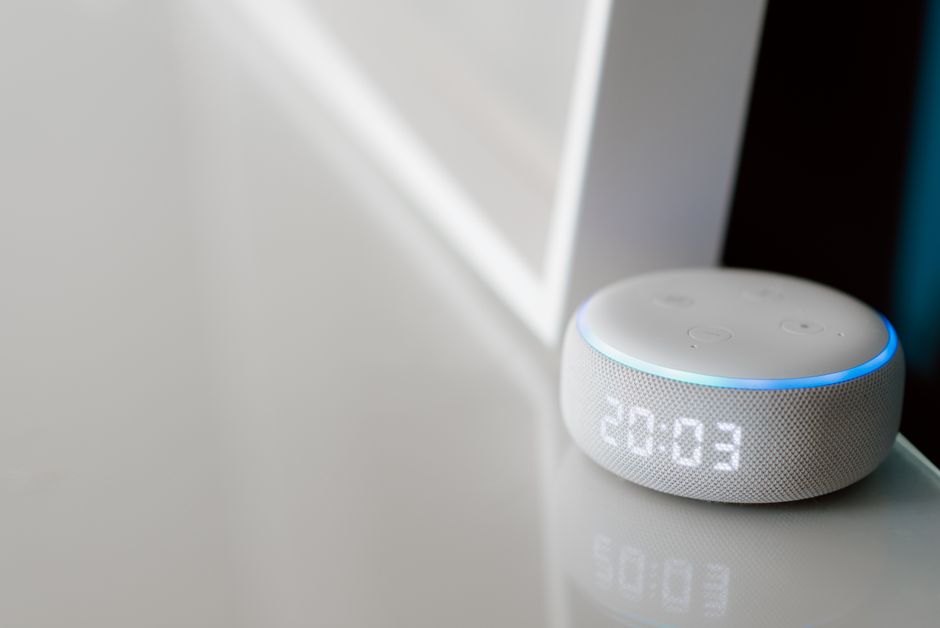
Beginners should start with a single device to learn the ecosystem before expanding. Smart speakers like Amazon Echo or Google Home serve as excellent entry points because they control other devices and provide voice convenience. Alternatively, smart light bulbs offer immediate visual feedback and are less complex to configure than thermostats or security systems.
Consider your primary goal: convenience, energy savings, or security. This decision guides which device to purchase first and helps you build a cohesive smart home strategy. Starting simple prevents frustration and builds confidence for future additions.
How Do You Connect Smart Home Devices to Your WiFi Network?
WiFi connectivity is the critical first step in device setup. Most smart devices use Bluetooth to establish initial communication with your phone, then transition to WiFi for permanent operation. Understanding this two-step process prevents confusion during installation.
The Bluetooth Pairing Process
Enable Bluetooth on your smartphone and open the manufacturer’s app. Most apps automatically detect nearby unpaired devices. Select your device from the list and confirm the pairing request on both your phone and the device itself. This Bluetooth connection only lasts during initial setup and allows your phone to transmit WiFi credentials securely to the device.
- Enable Bluetooth on your smartphone before starting setup
- Open manufacturer app and select “Add Device” or similar option
- Confirm pairing request on both phone and device
- Keep phone and device within 10 feet during pairing
Transmitting WiFi Credentials
Once paired via Bluetooth, the app prompts you to select your WiFi network from a list. Enter your WiFi password carefully—typos are a common setup failure. The app then sends these credentials to your device over the secure Bluetooth connection. Your device connects to your WiFi network and verifies the connection before completing setup.
If your device fails to connect, verify that your WiFi password is correct and your router is within range. Some devices struggle with special characters in passwords; consider simplifying temporarily if problems persist. For detailed WiFi connection troubleshooting, see our guide on how to connect smart home devices to WiFi in 2026.
Key Takeaway: Bluetooth enables secure credential transmission; WiFi provides permanent device connectivity.
What Configuration Steps Follow Initial WiFi Connection?
After your device connects to WiFi, the app guides you through configuration screens. These steps personalize your device and enable key features. Read each prompt carefully rather than rushing through the process.
Creating Your Manufacturer Account
Most smart devices require a manufacturer account for cloud services and remote access. Use a strong, unique email address and password. This account stores your device preferences, automation rules, and user data. Protect this account with a strong password—never reuse passwords across multiple accounts. Consider enabling two-factor authentication if the manufacturer offers it, adding an extra security layer.
- Use unique, strong password (minimum 12 characters with mixed case and numbers)
- Enable two-factor authentication for added security
- Save account credentials in a password manager
- Use a dedicated email address if managing multiple accounts
Naming and Locating Your Device
Assign a descriptive name that indicates the device’s location: “Living Room Light,” “Kitchen Speaker,” or “Front Door Camera.” Avoid generic names like “Device 1” that become confusing when you add multiple items. The app also asks you to specify the device’s room or location within your home. This organization enables voice commands and automation routines to work intuitively.
Configuring Basic Settings
Most apps present optional settings for language, time zone, temperature units, and notification preferences. Configure these according to your preferences. Some devices offer advanced settings like voice recognition training or camera privacy modes. Don’t feel pressured to enable every feature immediately—you can adjust settings later as you become comfortable with the device.
Key Takeaway: Use strong passwords and descriptive device names to build a secure, organized smart home.
How Should You Secure Your Smart Home Devices During Setup?
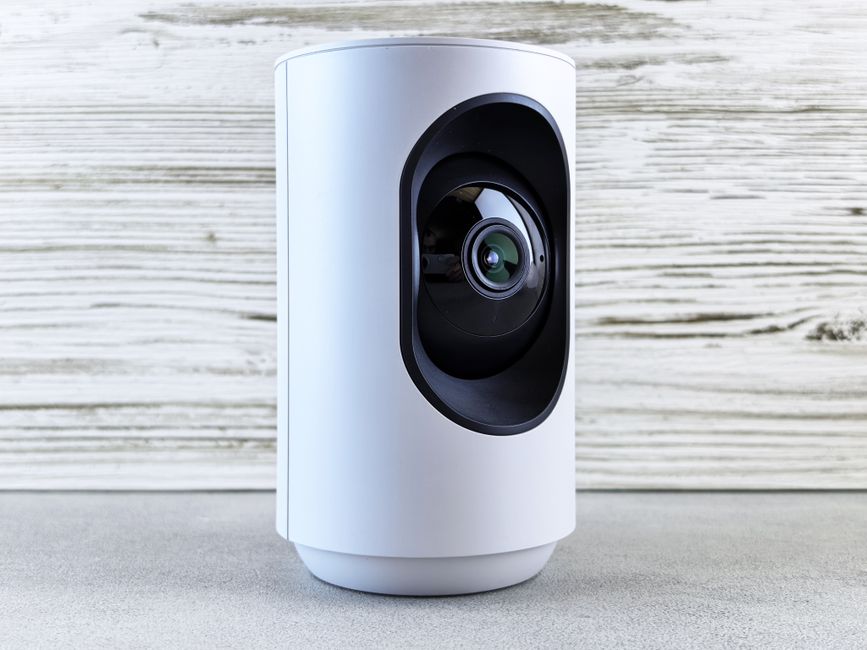
Security should not be an afterthought. Building protection into your initial setup prevents vulnerabilities that are difficult to fix later. In 2026, smart home security is more important than ever as devices become more prevalent in homes.
- Create unique, strong passwords for each device account
- Enable two-factor authentication on all manufacturer accounts
- Update device firmware immediately after initial setup
- Use a dedicated WiFi network for smart devices if possible
- Disable unnecessary features like remote access if not needed
- Review privacy settings and disable data collection if desired
Firmware Updates and Security Patches
After setup completes, check the app for available firmware updates. Manufacturers release updates to fix security vulnerabilities and improve performance. Install updates immediately rather than delaying. Most devices update automatically in the background, but verify this setting is enabled in your app’s preferences.
For comprehensive security guidance, review our detailed article on how to protect your smart home from hackers in 2026. This resource covers advanced security measures for expanding systems.
Network Segmentation Basics
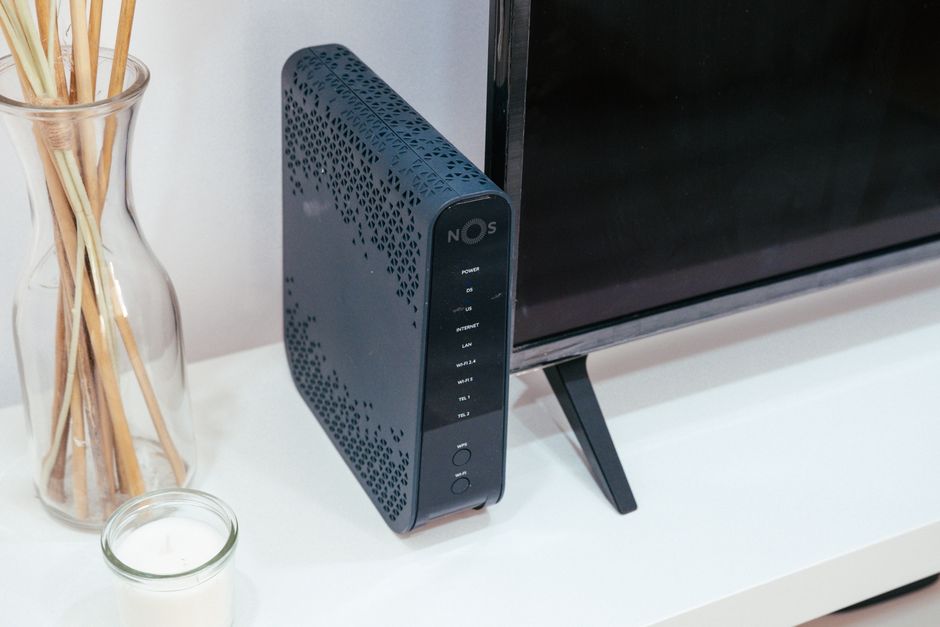
If your router supports guest networks, consider placing smart devices on a separate network from computers and phones. This segmentation limits potential damage if a device becomes compromised. Most modern routers in 2026 support this feature—check your router’s admin panel to enable it. This optional step provides additional peace of mind for security-conscious users.
Key Takeaway: Strong passwords and firmware updates form the foundation of smart home security.
What Are Practical Steps to Set Up Your First Smart Device?
Follow this numbered sequence to successfully set up your first smart home device. This step-by-step approach minimizes errors and ensures you don’t miss critical configuration steps.
- Gather requirements: Collect your WiFi network name, password, and smartphone. Ensure your device has power and is in the room where you’ll use it.
- Download the app: Search for the manufacturer’s official app on Apple App Store or Google Play Store. Install and open the app on your smartphone.
- Enable Bluetooth: Turn on Bluetooth in your phone’s settings. Keep your phone within 10 feet of the device during setup.
- Start pairing: Tap “Add Device” or “Set Up New Device” in the app. Select your device model from the list when it appears.
- Confirm pairing: Follow on-screen prompts to confirm the Bluetooth pairing on both your phone and the device itself.
- Select WiFi network: Choose your home WiFi network from the app’s list. Enter your WiFi password exactly as it appears (case-sensitive).
- Create account: Enter a valid email address and create a strong password. Save these credentials securely in a password manager.
- Name your device: Assign a descriptive location-based name like “Living Room Speaker” or “Kitchen Light.”
- Configure settings: Set time zone, language, and notification preferences according to your needs.
- Check for updates: After setup completes, open the app’s settings and install any available firmware updates.
- Test functionality: Use the app to control your device and verify it responds correctly to commands.
- Enable security: Return to account settings and enable two-factor authentication if available.
Key Takeaway: Following a structured setup sequence prevents common mistakes and ensures proper device configuration.
How Do You Expand Beyond Your First Device?
Once you’ve successfully set up your first device, expanding your smart home becomes much easier. You’ve learned the process and understand your WiFi network’s capabilities. Plan your expansion thoughtfully rather than purchasing randomly.
Planning Your Smart Home Growth
Identify areas where smart devices would provide genuine value. If you started with a speaker, consider adding smart lights in the same room. If your first device was a thermostat, add a smart plug to monitor energy consumption. This logical expansion creates an integrated ecosystem where devices work together through automation routines.
Consider your WiFi network’s capacity before adding too many devices simultaneously. Most modern routers handle 20-30 smart devices comfortably, but performance degrades with excessive connections. Space out purchases over several months to test each device thoroughly.
Choosing Compatible Ecosystems
In 2026, most smart devices work with multiple ecosystems like Amazon Alexa, Google Home, or Apple HomeKit. Choose a primary ecosystem early and stick with it for consistency. You can add devices from different manufacturers as long as they support your chosen platform. This strategy prevents confusion and simplifies voice command integration.
- Select one primary ecosystem (Alexa, Google Home, or HomeKit) as your foundation
- Verify new devices support your chosen platform before purchasing
- Add devices gradually to test compatibility and network stability
- Document your device names and locations for reference
Creating Automation Routines
Once you have multiple devices, automation routines multiply their value. A morning routine might turn on lights, start your coffee maker, and adjust the thermostat. Evening routines could lock doors, dim lights, and activate security cameras. Start with simple two-device routines and gradually build complexity as you gain confidence.
For detailed guidance on creating routines, see our articles on how to create a smart home routine with Alexa in 2026 and how to automate your home with Google Home in 2026.
Key Takeaway: Expand thoughtfully by choosing compatible devices and creating automation routines that deliver real value.
What Common Setup Mistakes Should You Avoid?
Learning from others’ mistakes accelerates your smart home success. These common errors cause frustration during setup and compromise system reliability.
- Weak passwords: Avoid simple passwords or reusing credentials across accounts. Use unique, complex passwords with 12+ characters.
- Ignoring firmware updates: Skipping updates leaves security vulnerabilities open. Always install updates immediately after setup.
- Poor device placement: Placing devices too far from your router causes connection drops. Keep devices within reasonable WiFi range.
- Typos in WiFi password: Passwords are case-sensitive. Verify the password character-by-character before submitting.
- Rushing configuration: Skipping settings screens causes missing features. Read each prompt and configure intentionally.
- Mixing incompatible devices: Verify device compatibility with your chosen ecosystem before purchasing.
- Neglecting security settings: Don’t skip two-factor authentication or privacy configuration steps.
Key Takeaway: Deliberate, patient setup prevents most common smart home configuration problems.
How Can You Troubleshoot Setup Problems?
Despite careful preparation, setup issues occasionally occur. Understanding troubleshooting basics resolves most problems without contacting manufacturer support.
WiFi Connection Failures
If your device won’t connect to WiFi, first verify your password is correct by testing it on another device. Restart your router by unplugging it for 30 seconds, then power it back on. Move your smartphone and the new device closer to the router to strengthen the Bluetooth signal during credential transmission. If problems persist, check your router’s settings to ensure it’s not blocking new connections.
App Communication Issues
If the app can’t find your device, ensure Bluetooth is enabled on your phone and the device is powered on. Restart both your smartphone and the smart device. Force-close the manufacturer’s app and reopen it. Ensure your phone’s operating system is current—outdated OS versions sometimes cause compatibility issues with new apps.
Account Creation Problems
If account creation fails, verify your email address is correct and not already associated with another account. Check that your password meets the manufacturer’s requirements (usually 8+ characters with mixed case). If you receive error messages, wait 15 minutes before retrying—the server may be temporarily overloaded.
Key Takeaway: Most setup problems resolve through basic troubleshooting like restarting devices and verifying credentials.
Frequently Asked Questions
Do I need a smart home hub to set up devices?
No, most devices in 2026 connect directly to your WiFi network without a hub. However, hubs like Amazon Echo Plus or Apple HomePod mini enable advanced features like remote access and automation. For more information, see our guide on how to make your home smart without a hub in 2026.
How long does smart home device setup typically take?
Most devices take 5-15 minutes to set up completely. This includes downloading the app, pairing via Bluetooth, connecting to WiFi, creating an account, and configuring basic settings. Complex devices like thermostats may require 20-30 minutes if you’re unfamiliar with your home’s electrical system.
Can I set up multiple devices simultaneously?
You can set up devices one at a time, but avoid setting up more than one simultaneously during initial installation. Complete setup for your first device, verify it works properly, then proceed to the next device. This approach prevents confusion and makes troubleshooting easier if problems arise.
What should I do if I forget my device account password?
Most manufacturer apps have a “Forgot Password” option on the login screen. Click it and follow the email recovery process. You’ll receive a password reset link within minutes. If you don’t receive the email, check your spam folder or contact manufacturer support with your account email address.
Is it safe to use the same password for all my smart devices?
No, using the same password across multiple accounts is a security risk. If one account is compromised, all your devices become vulnerable. Use a password manager to generate and store unique passwords for each device account. This approach maintains security without requiring you to memorize multiple passwords.
Can I change my device name after initial setup?
Yes, you can rename devices anytime through the manufacturer’s app. Open the device settings and select the name field to edit it. This flexibility allows you to adjust names as your smart home evolves or if you move devices to different locations.
How Can You Ensure Long-Term Smart Home Success?
Setting up devices correctly is just the beginning. Long-term success requires ongoing attention to maintenance, security, and expansion planning. In 2026, smart homes are more sophisticated than ever, offering unprecedented convenience when properly maintained.
Regular firmware updates protect against security vulnerabilities and introduce new features. Check your manufacturer app monthly for available updates and install them promptly. Monitor your WiFi network’s performance and upgrade your router if you notice connection drops or slow response times. Document your device setup process, including passwords and configuration notes, for future reference.
As your smart home grows, consider how devices interact through automation. Create routines that solve real problems rather than adding complexity. Review your security settings quarterly and adjust privacy configurations as your comfort level increases. Finally, stay informed about new technologies by reading industry publications and manufacturer announcements.
Your smart home should enhance your lifestyle without adding stress. If setup feels overwhelming, take your time with one device at a time. If security concerns arise, consult our comprehensive smart home security guide for detailed protection strategies. With patience and attention to fundamentals, you’ll build a connected home that serves your needs for years to come.
Key Takeaway: Smart home success combines proper initial setup with ongoing maintenance, security vigilance, and thoughtful expansion planning.


Write Your Review
No reviews yet. Be the first to share your experience!