
How to Set Up Amazon Echo as a Smart Home Hub in 2026?
Setting up Amazon Echo as a smart home hub transforms your device into a central control system for all compatible smart devices. An Echo hub enables remote access, automation, and seamless device communication even when you’re away from home. In June 2026, Amazon’s hub ecosystem supports thousands of third-party devices across multiple brands and protocols. This guide walks you through every step of the setup process, from initial configuration to advanced automation. You’ll learn how to connect devices, configure your network, and troubleshoot common issues.
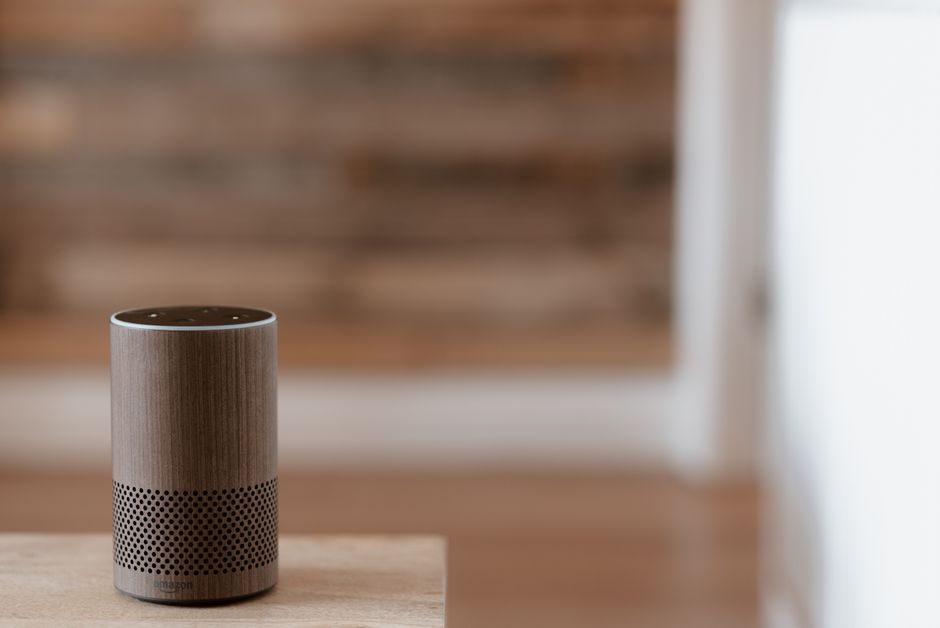
Amazon Echo hubs work by establishing a secure connection to your home WiFi network and creating a local mesh network with compatible devices. The hub communicates with Amazon’s cloud servers to enable remote control and voice commands. Unlike standalone Echo devices, hub-enabled models include a built-in Zigbee radio that connects to devices using that protocol. This eliminates the need for separate bridge devices for many popular smart home brands. Setting up your hub correctly ensures reliable performance and access to advanced features like routines, automations, and geofencing.
Key Takeaway: An Amazon Echo hub centralizes smart home control and enables remote access to all compatible devices.
What Models of Amazon Echo Work as Smart Home Hubs?
Not all Echo devices function as smart home hubs. Amazon specifically designed certain models with the necessary hardware to manage Zigbee-compatible devices and enable hub features. As of June 2026, the following Echo models include built-in hub capabilities:
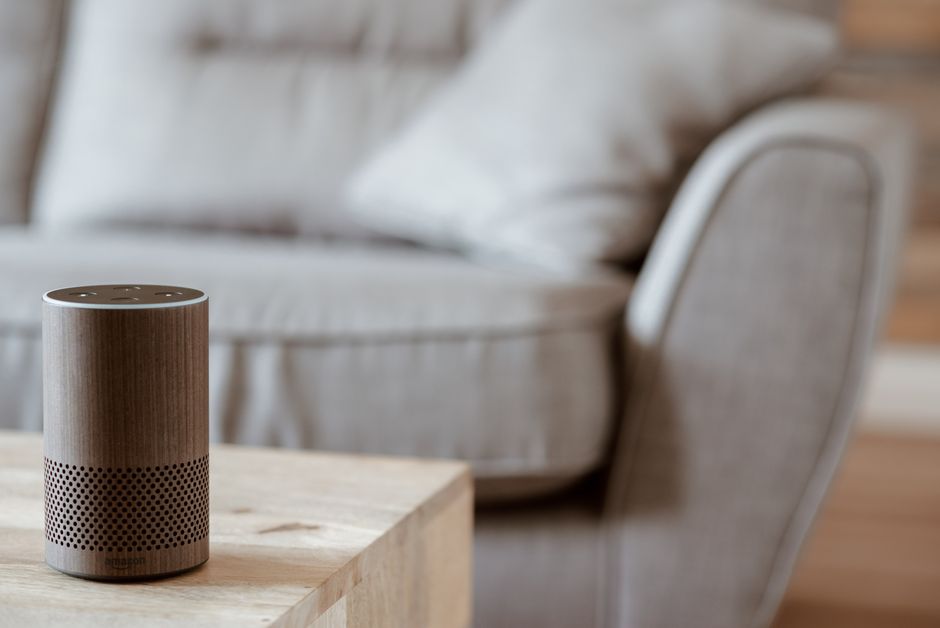
- Echo (5th generation and newer) — includes Zigbee hub functionality
- Echo Dot (5th generation and newer) — compact hub option with Zigbee support
- Echo Show 5 (3rd generation and newer) — hub with touchscreen display
- Echo Show 8 (2nd generation and newer) — larger display hub model
- Echo Show 15 — wall-mounted hub with calendar and smart home control
- Echo Hub — dedicated hub device without speaker or display
The Echo Hub, released in 2025, is Amazon’s dedicated hub device designed specifically for smart home control without audio or video features. It’s the most compact option for users who already have speakers elsewhere. Check your device’s specifications or the Alexa app to confirm hub support before beginning setup.
If you own an older Echo model without hub functionality, you can still use it for voice control and basic automation. However, you’ll need a newer hub-enabled device to access remote access features and advanced automations. Consider upgrading if your current device lacks Zigbee support.
Key Takeaway: Only newer Echo models with Zigbee hardware function as smart home hubs.
How Do You Connect Your Echo Hub to WiFi and Amazon Account?
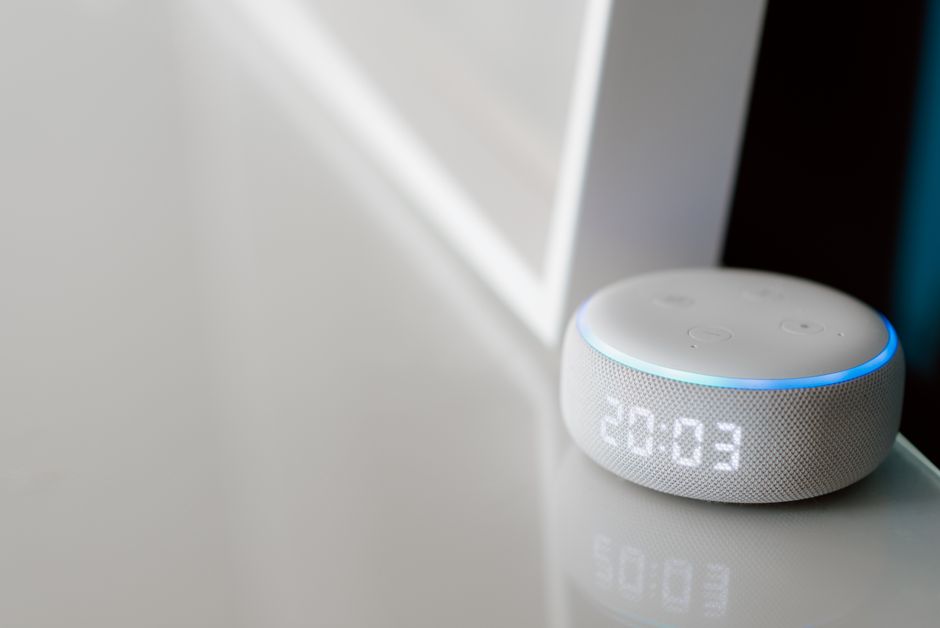
The initial setup process requires connecting your Echo hub to your home WiFi network and linking it to your Amazon account. This foundation ensures proper communication with smart devices and Amazon’s cloud services. Start by plugging in your Echo hub and waiting for the LED ring to turn orange, indicating it’s ready for setup.
Initial WiFi Connection Steps
Download the Alexa app on your smartphone and open it. Tap the “Devices” icon at the bottom right, then select the plus (+) icon to add a new device. Choose “Amazon Echo” and select your specific hub model from the list. The app will search for nearby Echo devices in setup mode.
- Ensure your phone is connected to the WiFi network you want to use
- Select your home WiFi network from the app’s list
- Enter your WiFi password when prompted
- Wait for the hub to connect — the LED will turn blue when successful
- Name your hub (e.g., “Living Room Hub”) for easy identification
After successful WiFi connection, the Alexa app will display your hub on the Devices page. Your Amazon account is automatically linked since you’re using the Alexa app. The hub can now communicate with Amazon’s servers and receive commands remotely.
Verifying Hub Status in the Alexa App
Open the Alexa app and navigate to “Devices” to confirm your hub is online. Tap on your hub’s name to view its settings and status. The hub details page shows your WiFi connection strength, firmware version, and hub status. Ensure the status reads “Connected” before proceeding to device pairing.
Key Takeaway: Proper WiFi setup and Amazon account linking are essential for hub functionality.
How Do You Add Smart Devices to Your Echo Hub?
Adding devices to your Echo hub involves pairing compatible smart home products through the Alexa app or voice commands. The process varies slightly depending on whether your devices use Zigbee, WiFi, or other protocols. Most modern smart devices are compatible with Amazon’s ecosystem, but always verify compatibility before purchasing.
Adding Zigbee Devices
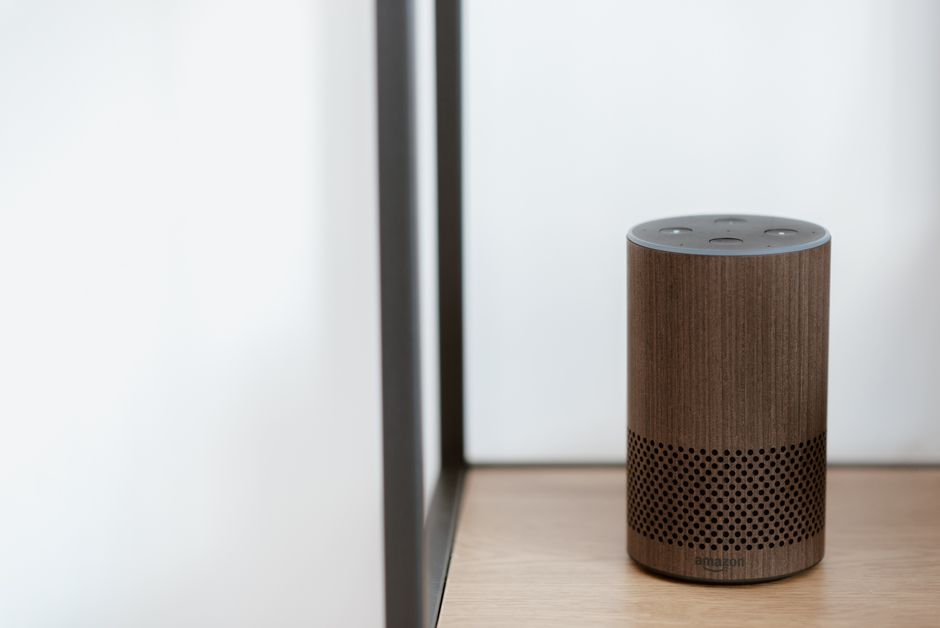
Zigbee devices communicate directly with your Echo hub through the built-in Zigbee radio. These devices typically include smart lights, door locks, and motion sensors. To add a Zigbee device, open the Alexa app and tap the plus (+) icon under “Devices.” Select “Add Device” and choose the device category (lights, locks, sensors, etc.).
- Put your Zigbee device into pairing mode — usually by pressing a button or resetting it
- The Alexa app will search for the device automatically
- Select the device from the list when it appears
- Follow brand-specific setup instructions if prompted
- Assign the device to a room and give it a descriptive name
Zigbee devices connect through your hub rather than directly to WiFi, reducing network congestion and improving reliability. The hub extends the Zigbee range throughout your home, allowing devices in distant rooms to maintain strong connections. This mesh network topology means devices can relay signals through each other.
Adding WiFi-Based Devices
WiFi devices connect directly to your home network instead of through the hub’s Zigbee radio. Many popular brands like Philips Hue, LIFX, and Wyze offer WiFi connectivity. These devices still work with your hub for automation and remote access, but they don’t use the Zigbee protocol.
To add a WiFi device, follow the same process in the Alexa app: tap the plus icon, select “Add Device,” and choose your device category. The app will search for available devices on your network. Select your device and enter any required credentials or pairing codes. Assign it to a room and name it appropriately.
WiFi devices may require their own companion app for advanced features and firmware updates. Installing both the Alexa app and the manufacturer’s app ensures full functionality. Some devices offer exclusive features only available through their native app.
Key Takeaway: Zigbee devices connect through your hub; WiFi devices connect directly to your network.
How Do You Configure Smart Home Automations and Routines?
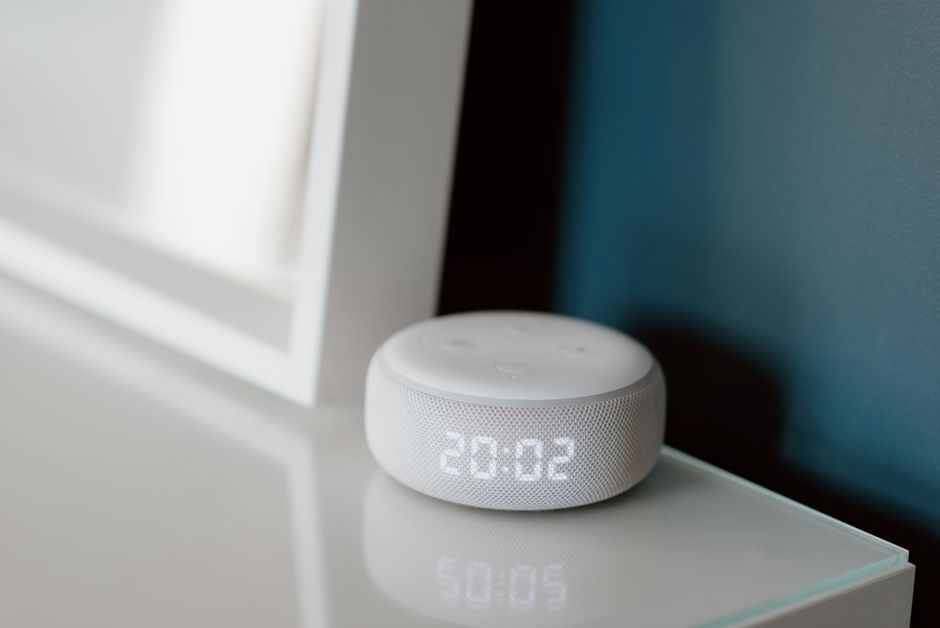
Automations and routines transform your Echo hub from a simple control device into an intelligent home management system. Automations trigger actions based on conditions like time, device state, or location. Routines execute multiple commands with a single voice command or at scheduled times. These features require a functioning hub for remote access and reliability.
Setting Up Basic Automations
Open the Alexa app and navigate to the “Routines” section. Tap the plus (+) icon to create a new automation. Select “Create Automation” and choose a trigger type. Available triggers include time-based actions, device state changes, geofencing events, and voice commands.
- Time-based triggers execute actions at specific times daily or weekly
- Device triggers activate when a device changes state (door opens, motion detected)
- Geofencing triggers fire when you arrive or leave your home location
- Voice command triggers let you activate multiple actions with one phrase
After selecting your trigger, define the actions you want to execute. You can control lights, adjust thermostats, lock doors, and trigger other devices. Test your automation by manually triggering it or waiting for the scheduled time. Adjust conditions if the automation doesn’t behave as expected.
Creating Useful Routines
Routines differ from automations by requiring explicit activation through voice commands or manual triggers. Common routines include “Good Morning,” “Leaving Home,” and “Bedtime.” These routines execute a sequence of actions that prepare your home for different scenarios.
To create a routine, tap the plus icon in the Routines section and select “Create Routine.” Give your routine a name and choose how to activate it. You can use a voice command, a specific time, or a manual button press in the app. Add multiple actions in sequence, and they’ll execute in order when triggered.
Example “Leaving Home” routine: lock all doors, arm security system, turn off lights, lower thermostat to away mode. Example “Good Morning” routine: turn on bedroom lights, start coffee maker, read the weather forecast, play your favorite news briefing.
Key Takeaway: Automations and routines require a functioning hub for remote access and advanced features.
What Security Settings Should You Enable for Your Echo Hub?
Securing your Echo hub protects your smart home from unauthorized access and ensures privacy. Amazon provides multiple security features that should be configured during setup. These include account security, device encryption, and access controls. For comprehensive security guidance, see our complete smart home security guide.
Essential Security Configuration
Enable two-factor authentication on your Amazon account to prevent unauthorized access. Open your Amazon account settings and navigate to “Login & security.” Select “Two-Step Verification” and follow the prompts to enable it. This requires a second verification method (phone number or authenticator app) when logging in from new devices.
- Change your WiFi password to a strong, unique combination of letters, numbers, and symbols
- Enable WPA3 encryption on your router if available, or WPA2 as a minimum
- Disable remote access for specific devices if you don’t need it
- Review connected apps and revoke access for unused services
- Update your Echo hub firmware regularly through the Alexa app
Configure device-specific permissions in the Alexa app under “More” settings. You can restrict which devices family members can control and set voice purchasing restrictions. These granular controls prevent accidental device activation or unauthorized purchases.
Privacy Settings and Data Management
Review your Alexa privacy settings to control voice recording and data storage. Open the Alexa app, tap “More,” then “Account Settings,” and select “Alexa Privacy.” You can delete voice recordings, disable voice purchasing, and manage permissions for third-party skills.
Disable voice purchasing if you’re concerned about accidental purchases. Require a PIN code for voice purchases if you want to keep the feature but add protection. Review which third-party skills have access to your data and revoke permissions for unused services.
Key Takeaway: Enable two-factor authentication, use strong WiFi passwords, and regularly review privacy settings.
How Do You Troubleshoot Common Echo Hub Setup Problems?
Setup issues can prevent your hub from functioning properly. Common problems include WiFi connectivity issues, device pairing failures, and cloud communication errors. Most problems have straightforward solutions that don’t require professional help. Start with basic troubleshooting before contacting Amazon support.
WiFi Connectivity Issues
If your hub won’t connect to WiFi, verify your network password is correct. Move the hub closer to your router to test if distance is the issue. Check that your router is functioning properly by testing other devices on the network.
- Restart your Echo hub by unplugging it for 30 seconds and plugging it back in
- Restart your WiFi router to refresh the network connection
- Check if your router’s WiFi band (2.4GHz vs 5GHz) is compatible with your hub
- Forget the network in the Alexa app and reconnect with your password
- Ensure your router firmware is updated to the latest version
Most Echo hubs work best on 2.4GHz networks, especially if they’re far from your router. If your router broadcasts both bands, try connecting to the 2.4GHz network specifically. Some routers allow you to separate the bands in settings, making it easier to select the right one.
Device Pairing Failures
When devices won’t pair with your hub, ensure they’re in pairing mode and within range. Check that the device is powered on and has sufficient battery if it’s wireless. Verify the device is compatible with your hub model by checking the manufacturer’s specifications.
Restart the device you’re trying to pair and try again. If it still won’t pair, unpair it from any previous hubs or accounts through the device’s app or settings. Some devices can only be paired with one hub at a time, so removing it from another account is necessary.
If pairing still fails, check if a firmware update is available for the device through its companion app. Outdated firmware can cause compatibility issues with newer hubs. Update the device and try pairing again after the update completes.
Key Takeaway: Restart devices and your hub to resolve most connectivity and pairing issues.
How Can You Expand Your Echo Hub System for Maximum Coverage?
As your smart home grows, you may need additional hubs for better coverage and reliability. Multiple hubs in different rooms create a more resilient system and improve Zigbee device connectivity. Hubs work together as a mesh network, with devices connecting to the strongest signal available.
Adding Secondary Hubs
Set up additional Echo hubs using the same process as your primary hub. Open the Alexa app and add each new hub device. The app automatically recognizes when multiple hubs are present and can coordinate between them. Name each hub clearly based on its location (e.g., “Bedroom Hub,” “Kitchen Hub”).
- Place secondary hubs in areas with poor WiFi signal from the primary hub
- Ensure each hub connects to the same WiFi network
- Space hubs at least 30 feet apart to avoid interference
- Use the same Amazon account for all hubs in your home
- Test Zigbee device connectivity from each hub location
Multiple hubs create redundancy in your smart home system. If one hub loses power or WiFi connection, others can maintain control of your devices. This is especially important for security devices like smart locks and cameras that you may need to access remotely.
Optimizing Hub Placement
Place your primary hub in a central location, elevated off the ground if possible. Avoid placing hubs in closets, cabinets, or behind metal objects that block radio signals. Metal appliances like microwaves and refrigerators can interfere with Zigbee signals, so maintain distance from these devices.
Test your Zigbee device connectivity from different hub locations to find the optimal placement. Move the hub if devices in certain rooms consistently lose connection. Hubs with better placement can control more devices reliably across your entire home.
Key Takeaway: Multiple hubs improve coverage and create redundancy for reliable smart home control.
What Advanced Features Are Available After Setup?
Once your Echo hub is properly configured, you can access advanced features that enhance your smart home experience. These include geofencing, voice control enhancements, and integration with other smart home platforms. Advanced features require a functioning hub and proper setup of automations and routines.
Geofencing uses your phone’s location to trigger automations when you arrive or leave home. Enable location access in the Alexa app and create location-based routines that execute automatically. This feature requires your phone to be connected to the internet and your hub to be online.
Voice control becomes more powerful with a hub because commands execute faster and don’t require internet connectivity for basic functions. Create custom voice commands through routines to control multiple devices with a single phrase. Use voice control to activate complex automations or execute entire scenes with one command.
Integration with other smart home platforms like Apple HomeKit and Google Home allows unified control across multiple ecosystems. Some devices work with multiple platforms, providing flexibility in your smart home setup. For guidance on connecting multiple brands, see our multi-brand integration guide.
Key Takeaway: Hub setup unlocks advanced features like geofencing, voice control, and multi-platform integration.
How Should You Maintain Your Echo Hub for Optimal Performance?
Regular maintenance ensures your Echo hub continues functioning reliably and securely. Simple tasks like updating firmware, clearing cache, and reviewing settings keep your hub in peak condition. Maintenance takes minimal time but prevents many common issues from developing.
Regular Maintenance Tasks
Check for firmware updates monthly through the Alexa app. Navigate to your hub’s settings and look for an “Update” option. Amazon releases firmware updates regularly that improve performance, add features, and patch security vulnerabilities. Enable automatic updates if available to keep your hub current without manual intervention.
- Restart your hub monthly to clear cache and refresh connections
- Review paired devices quarterly and remove any you no longer use
- Check WiFi signal strength and adjust hub placement if needed
- Update device firmware for paired smart home products
- Review Alexa privacy settings every few months
Clean your hub’s microphone and speaker openings periodically to prevent dust buildup. Use a soft, dry cloth and avoid liquids or compressed air. Dust accumulation can reduce audio quality and potentially affect microphone sensitivity.
Monitoring Hub Health
Check your hub’s status regularly in the Alexa app to catch issues early. The hub details page shows WiFi connection strength, online status, and firmware version. If your hub shows a weak WiFi signal, try moving it closer to your router or adding a secondary hub in that area.
Monitor your smart devices’ responsiveness and reliability. If devices become unresponsive, it may indicate hub connectivity issues. Restart your hub and check for firmware updates if devices frequently lose connection.
Key Takeaway: Monthly firmware updates and quarterly device reviews maintain optimal hub performance.
Is Amazon Echo Hub the Right Choice for Your Smart Home?
Amazon Echo as a smart home hub offers excellent compatibility, ease of use, and affordable pricing compared to other hub options. The extensive device ecosystem and integration with Alexa voice control make it a popular choice for many households. However, other platforms like Apple HomeKit and Google Home may suit different needs and preferences.
Consider your existing smart devices and preferred ecosystem when choosing a hub. If you already own multiple Amazon Echo devices or prefer voice-first control, an Amazon Echo hub is an excellent choice. If you prioritize privacy or prefer HomeKit’s encryption standards, you might explore other options.
The good news is that you don’t need to choose exclusively. Many smart home devices work with multiple platforms, allowing you to use an Echo hub alongside other systems. This hybrid approach gives you flexibility while taking advantage of each platform’s strengths. For more information on setup without a hub, see our guide on hub-free smart homes.
Key Takeaway: Amazon Echo hubs offer excellent value and compatibility but consider your specific needs before committing.
Frequently Asked Questions
Can I Use Multiple Echo Hubs in One Home?
Yes, you can use multiple Echo hubs in one home. They automatically work together as a mesh network, with Zigbee devices connecting to the strongest signal. Multiple hubs improve coverage, increase device capacity, and provide redundancy if one hub fails. Ensure all hubs connect to the same WiFi network and Amazon account.
Do All Smart Devices Work with Amazon Echo Hubs?
Not all smart devices work with Amazon Echo hubs. Devices must be compatible with Alexa or work through WiFi connectivity. Check the device’s specifications or packaging for “Works with Alexa” certification. Thousands of devices support Alexa, but some brands exclusively support other platforms like HomeKit or Google Home.
What’s the Difference Between Zigbee and WiFi Devices on My Hub?
Zigbee devices connect through your hub’s Zigbee radio and don’t use your WiFi network. WiFi devices connect directly to your home network. Zigbee devices use less power and create a mesh network, while WiFi devices offer longer range but consume more battery power in wireless devices.
How Far Can Zigbee Devices Be from My Echo Hub?
Zigbee devices typically have a range of 100-300 feet in open space, but walls and interference reduce this distance. Multiple hubs or Zigbee repeaters extend range throughout your home. Test device connectivity in different rooms to ensure reliable connections in your specific environment.
Can I Control My Echo Hub Remotely When Away from Home?
Yes, a properly configured Echo hub enables remote control through the Alexa app from anywhere with internet connectivity. Ensure your hub is online and connected to WiFi. Remote access works for voice commands, automations, and manual device control through the app.
Is My Amazon Echo Hub Secure from Hackers?
Amazon Echo hubs include encryption and security features, but no system is completely hack-proof. Enable two-factor authentication on your Amazon account, use strong WiFi passwords, and keep firmware updated. Regularly review connected apps and disable voice purchasing for additional security.
Conclusion: Setting Up Your Amazon Echo Hub for Smart Home Success
Setting up Amazon Echo as a smart home hub in 2026 is straightforward when you follow the proper steps and configuration guidelines. Start by selecting a compatible hub model, connecting it to WiFi, and linking it to your Amazon account. Add your smart devices through the Alexa app, configure automations and routines, and enable security features to protect your system.
The hub ecosystem offers excellent compatibility with thousands of devices and seamless integration with Alexa voice control. Multiple hubs can work together to provide complete home coverage and redundancy. Regular maintenance and firmware updates keep your system secure and reliable.
Take time to properly configure your automations and routines to maximize the benefits of your hub. Start with simple automations and gradually add complexity as you become comfortable with the system. Your Echo hub will transform your home into an intelligent, responsive living space that adapts to your lifestyle and preferences.
Key Takeaway: Proper Echo hub setup unlocks powerful smart home automation and remote access capabilities.


Write Your Review
No reviews yet. Be the first to share your experience!