
How to Use Apple HomeKit to Control Smart Devices in 2026?
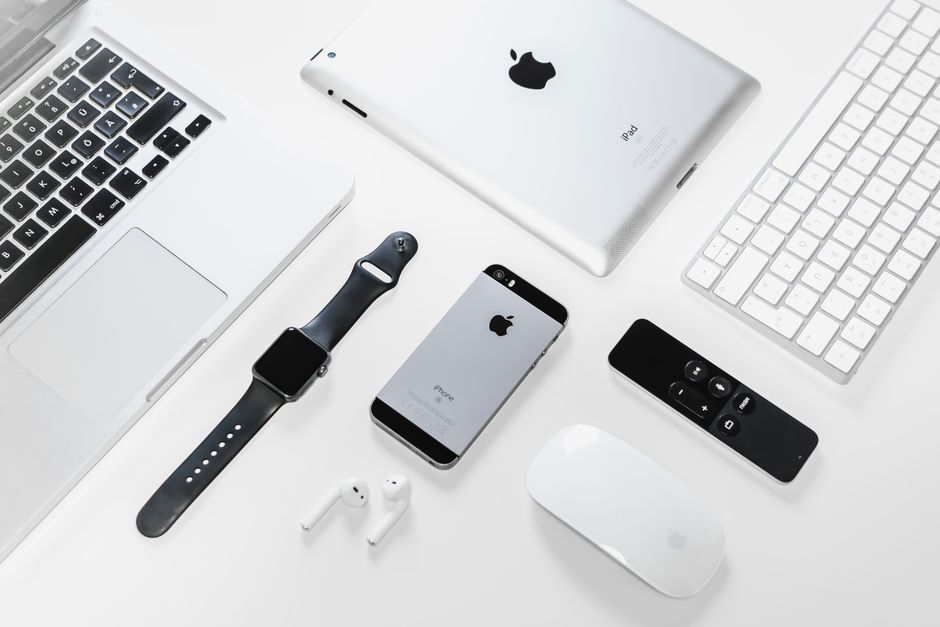
Apple HomeKit is a secure, privacy-focused platform that lets you control smart devices from your iPhone, iPad, Apple Watch, or Mac. In 2026, HomeKit supports thousands of compatible devices including lights, locks, thermostats, cameras, and plugs. You can control devices individually or create scenes that activate multiple devices simultaneously. Siri voice commands make hands-free control effortless. HomeKit encrypts all data end-to-end, meaning Apple cannot access your home automation data. The platform requires a Home Hub—an Apple TV 4K, HomePod mini, or iPad—to enable remote access and automation. Setting up HomeKit takes just minutes once you have compatible devices and a hub in place.
HomeKit has evolved significantly since its launch. The 2026 version includes improved Matter support, faster device responsiveness, and enhanced automation capabilities. Matter integration allows HomeKit to communicate with devices from different manufacturers seamlessly. Remote access means you can control your home from anywhere globally. Automation features let you trigger actions based on time, location, or sensor conditions. This guide covers everything from initial setup through advanced automation and troubleshooting.
Key Takeaway: Apple HomeKit in 2026 offers secure, voice-controlled smart home automation with broad device compatibility and privacy protection.
What Do You Need to Set Up Apple HomeKit?
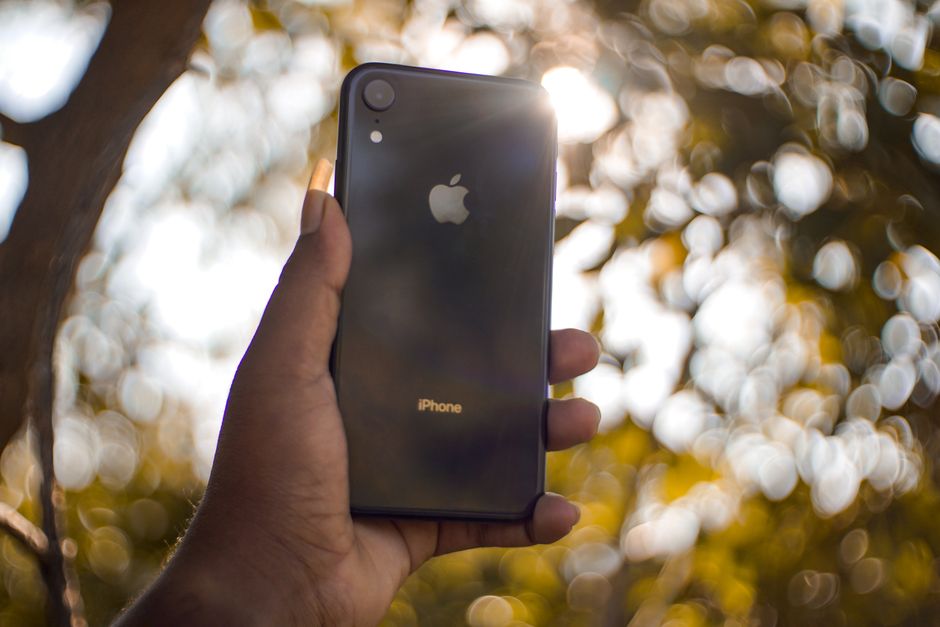
Before controlling smart devices with HomeKit, you need specific hardware and compatible devices. The foundation starts with an Apple device running the Home app—iPhone, iPad, Mac, or Apple Watch. You also need a Home Hub for remote access and automation features. Without a hub, you can only control devices when physically present on your home WiFi network.
Here are the essential components for HomeKit setup:
- Apple device with Home app (iPhone 8 or later, iPad, Mac, or Apple Watch)
- Home Hub: Apple TV 4K, HomePod mini, or iPad set to stay home
- Compatible HomeKit devices (lights, locks, thermostats, cameras, plugs)
- Stable 2.4 GHz or 5 GHz WiFi network
- iCloud account signed in on your Apple device
Choosing the Right Home Hub
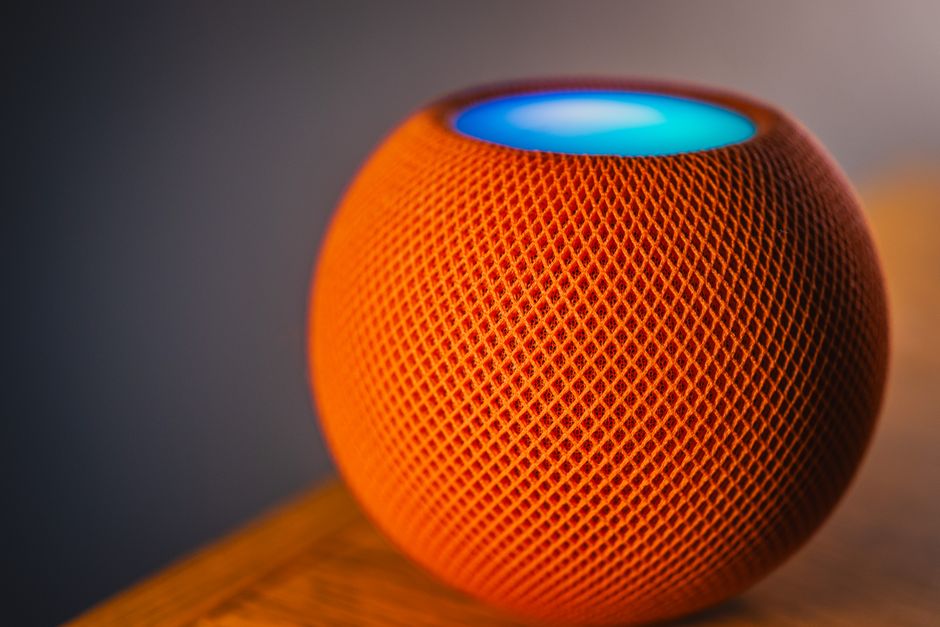
The Home Hub is critical for HomeKit functionality. HomePod mini is the most affordable option at around $99 and provides excellent performance. Apple TV 4K costs more but offers additional entertainment features. An iPad can serve as a hub if left plugged in and at home constantly. Choose based on your existing Apple ecosystem and budget. Only one hub is required, though multiple hubs improve reliability and speed.
Key Takeaway: You need an Apple device, a Home Hub, compatible smart devices, and a strong WiFi network to use HomeKit effectively.
How Do You Add and Control Devices in HomeKit?
Adding devices to HomeKit is straightforward but requires HomeKit-certified products. Each device comes with a unique HomeKit code—either a QR code or an 8-digit number. Open the Home app, tap the plus icon, and select “Add Accessory.” Scan the device’s HomeKit code using your iPhone camera. Name the device, assign it to a room, and confirm the WiFi network. Most devices connect within seconds.
Once added, controlling devices becomes intuitive:
- Tap device tiles in the Home app to toggle on/off or adjust settings
- Use Siri voice commands: “Hey Siri, turn on the living room lights”
- Create scenes that control multiple devices with one tap
- Set automations to trigger actions based on time, location, or conditions
- Access devices remotely from anywhere via your Home Hub
Organizing Devices by Rooms and Zones
HomeKit lets you organize devices by rooms for better control and automation. Create rooms that match your home layout: living room, bedroom, kitchen, etc. Assigning devices to rooms makes Siri commands more natural. “Dim the bedroom lights” works better than naming individual fixtures. Zones group multiple rooms for broader control—set a “Downstairs” zone containing kitchen, living room, and dining room devices. This organization improves automation accuracy and makes the Home app easier to navigate.
Key Takeaway: Add HomeKit devices by scanning their codes, then organize them into rooms and zones for intuitive control and automation.
How Can You Create Scenes and Automations in HomeKit?
Scenes are custom configurations that control multiple devices simultaneously with one action. Create a “Good Morning” scene that opens blinds, starts coffee, and adjusts the thermostat. A “Movie Time” scene dims lights and closes curtains. Scenes save time and create consistent home environments. You can activate scenes manually via the Home app, Siri, or automations. In 2026, HomeKit supports complex scenes with conditional logic and device-specific settings.
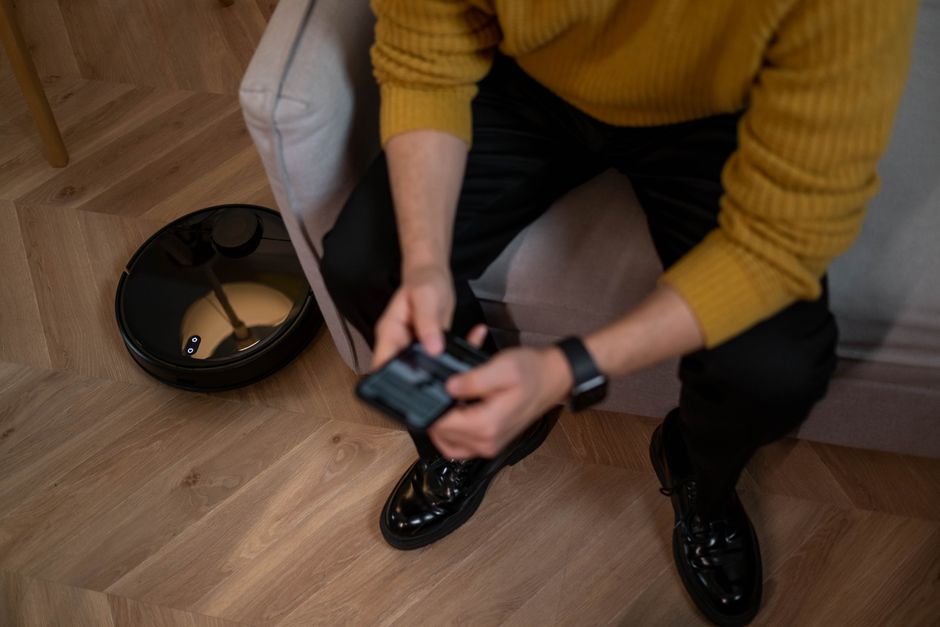
Automations trigger scenes or device actions based on specific conditions:
- Time-based automations: Run at specific times daily or weekly
- Location-based automations: Trigger when you leave or arrive home
- Sensor-based automations: Activate when motion, temperature, or humidity changes
- Device-based automations: Trigger when another device’s state changes
- Sunset/sunrise automations: Run at natural light transitions
Building Your First Automation
Creating automations requires planning what you want to achieve. Start simple: “Turn on outdoor lights at sunset.” Open the Home app, tap Automation, and select the trigger type. Set conditions precisely—specify which days the automation runs. Choose the action: turning devices on/off or activating a scene. Test the automation to ensure it works as expected. Once comfortable, build more complex automations combining multiple devices and conditions. Avoid conflicting automations that might cause unexpected behavior.
Key Takeaway: Scenes control multiple devices instantly, while automations trigger actions based on time, location, or sensor conditions for hands-free home management.
How Do You Use Siri Voice Commands with HomeKit?
Siri integration makes HomeKit incredibly convenient. Simply say “Hey Siri” followed by your command. HomeKit understands natural language, so “Turn off the bedroom lights” works perfectly. You can control individual devices, activate scenes, or check device status using voice. Siri works on any Apple device with HomeKit access—iPhone, iPad, Mac, Apple Watch, or HomePod. Voice commands work even when you’re not home if you have a Home Hub set up.
Common Siri voice commands for HomeKit include:
- “Turn on the living room lights”
- “Set the thermostat to 72 degrees”
- “Lock the front door”
- “Activate Movie Time”
- “Is the garage door open?”
- “Dim the kitchen lights to 50 percent”
Customizing Siri Shortcuts for HomeKit
For advanced users, Siri Shortcuts app lets you create custom voice commands combining HomeKit actions with other tasks. Build a shortcut that activates a scene, sends a notification, and starts playing music. Another shortcut could lock all doors and arm security cameras simultaneously. Shortcuts support complex logic with conditional statements and multiple device actions. This level of customization creates truly personalized home automation experiences. Shortcuts sync across your Apple devices for consistent control everywhere.
Key Takeaway: Siri voice commands provide hands-free HomeKit control, and Shortcuts enable advanced custom automations combining multiple actions.
What Security Features Does HomeKit Provide?
HomeKit prioritizes privacy and security above all else. All communication between your devices and Apple servers uses end-to-end encryption. Apple cannot see your home automation data, device status, or activity logs. HomeKit uses industry-standard security protocols and regular updates to patch vulnerabilities. Two-factor authentication protects your iCloud account, which controls HomeKit access. HomeKit Secure Video analyzes camera feeds on-device rather than sending footage to Apple’s servers, protecting your privacy completely.
Key security features in HomeKit 2026:
- End-to-end encryption for all data transmission
- Two-factor authentication for iCloud accounts
- HomeKit Secure Video with on-device processing
- Regular security updates and vulnerability patches
- Granular access controls for family members and guests
- Activity logs showing all device control and automation triggers
Managing Family Access and Guest Permissions
HomeKit lets you share control with family members and guests with different permission levels. Invite family members to your home, granting them full control or restricted access. Guests can control specific devices or scenes for limited periods. You maintain full control over who can access what and when. Remove access anytime without affecting their Apple devices. This granular control ensures security while enabling convenient family automation. For more comprehensive smart home security, see our complete smart home security guide.
Key Takeaway: HomeKit uses end-to-end encryption and granular access controls to protect your privacy while enabling secure family sharing.
How Do You Troubleshoot Common HomeKit Issues?
HomeKit usually works seamlessly, but occasional issues arise. Devices becoming unresponsive is the most common problem. First, check that your Home Hub is online and functioning properly. Restart the device by unplugging it for 30 seconds. Ensure your WiFi network is stable and strong throughout your home. Move devices closer to your router if they’re too far away. Update your device firmware through the Home app settings. If problems persist, remove and re-add the device to HomeKit.
Common HomeKit troubleshooting steps:
- Verify Home Hub is online and connected to WiFi
- Restart your WiFi router by unplugging for 30 seconds
- Update HomeKit device firmware in the Home app
- Check that all devices are within WiFi range
- Restart the Home app on your Apple device
- Remove and re-add problematic devices to HomeKit
- Sign out and back into iCloud if remote access fails
When to Reset HomeKit Completely
Sometimes a complete HomeKit reset becomes necessary after major changes or persistent issues. Resetting removes all devices, rooms, scenes, and automations. This drastic step should be your last resort. Before resetting, export your HomeKit configuration if possible. Remove all devices from HomeKit manually first. Then reset HomeKit through Home app settings. Re-add devices one by one, testing each before proceeding. This slower approach helps identify problematic devices causing system-wide issues.
Key Takeaway: Most HomeKit issues resolve with Home Hub restart, firmware updates, and WiFi optimization, with complete reset as a last resort.
What Advanced HomeKit Features Should You Explore?
Beyond basic control, HomeKit offers sophisticated features for power users. HomeKit Secure Video provides intelligent video analysis with face recognition and activity detection. Adaptive Lighting automatically adjusts color temperature throughout the day, matching natural light patterns. Thread networking creates a mesh network improving device responsiveness and reliability. Matter support enables seamless integration with non-HomeKit devices from other manufacturers. These features transform HomeKit from simple remote control into an intelligent home management system.
Advanced HomeKit capabilities in 2026:
- HomeKit Secure Video with intelligent person, animal, and vehicle detection
- Adaptive Lighting that mimics natural light throughout the day
- Thread networking for improved device mesh connectivity
- Matter support for cross-brand device compatibility
- Activity history showing detailed automation and control logs
- Geofencing with precise location-based triggers
Integrating HomeKit with Other Apple Services
HomeKit integrates beautifully with other Apple services. Control HomeKit from Apple Watch without touching your iPhone. Use Siri on HomePod to manage devices hands-free. Apple TV serves as your Home Hub while providing entertainment. Focus modes on iOS automatically adjust HomeKit settings based on your activity. Calendar integration triggers automations at specific times. These integrations create a unified Apple ecosystem where HomeKit fits naturally into your digital life. For broader multi-brand integration, explore our guide on connecting multiple smart home brands.
Key Takeaway: HomeKit’s advanced features like Secure Video, Adaptive Lighting, and Thread create intelligent automation while integrating seamlessly with Apple’s ecosystem.
How Do You Choose HomeKit-Compatible Devices?
Not all smart devices work with HomeKit—only HomeKit-certified products are compatible. Look for the HomeKit logo on packaging or product listings. Check Apple’s official HomeKit accessory database on their website. Popular categories include smart lights from Philips Hue and Nanoleaf, smart locks from Level and Logitech, thermostats from Eve, and cameras from Logitech and Eve. Matter support expands compatibility dramatically. Always verify HomeKit certification before purchasing to avoid incompatible devices.
Tips for selecting HomeKit devices:
- Verify HomeKit certification before purchasing any device
- Check the official Apple HomeKit accessory database
- Prioritize devices with Thread support for better connectivity
- Read reviews focusing on HomeKit integration quality
- Start with one category before expanding to multiple brands
- Consider Matter-compatible devices for future flexibility
Budget-Friendly HomeKit Starter Kits
Beginning your HomeKit journey doesn’t require significant investment. HomePod mini costs around $99 and serves as your Home Hub and speaker. Smart plugs from Eve or Nanoleaf cost $15-30 each, making devices smart without replacing them. A basic smart light starter kit from Philips Hue runs $50-80. Budget $200-300 for a functional HomeKit system with hub, lights, and plugs. Expand gradually as your needs grow. For first-time setup guidance, see our complete beginner’s setup guide.
Key Takeaway: Choose HomeKit-certified devices, prioritize Thread support, and start with a budget-friendly hub and basic accessories before expanding.
Why Should You Use HomeKit Over Competing Platforms?
HomeKit stands apart through privacy, security, and seamless Apple integration. Unlike Google Home or Alexa, Apple doesn’t collect behavioral data for advertising. HomeKit’s end-to-end encryption means your automation patterns remain private. Thread networking provides superior reliability compared to WiFi-only systems. HomeKit works across iPhone, iPad, Mac, and Apple Watch without separate apps. Siri integration feels more natural than competitor voice assistants. If you’re invested in Apple’s ecosystem, HomeKit is the obvious choice. For comparison with other platforms, check our Google Home automation guide and Alexa routine creation guide.
HomeKit advantages in 2026:
- Privacy-first design with no advertising tracking
- End-to-end encryption for all communications
- Thread mesh networking for improved reliability
- Seamless integration across all Apple devices
- Superior Siri voice command capabilities
- Granular family and guest access controls
Key Takeaway: HomeKit prioritizes privacy and security while integrating naturally with Apple devices, making it ideal for privacy-conscious Apple users.
How Can You Future-Proof Your HomeKit Setup?
Building a scalable HomeKit system ensures your investment remains relevant. Choose Thread-enabled devices when possible—Thread creates a mesh network improving reliability and speed. Support for Matter protocol means non-HomeKit devices can integrate with HomeKit eventually. Select devices from established manufacturers with strong update track records. Avoid proprietary ecosystems that lock you into single brands. Plan your layout before adding devices, positioning your Home Hub centrally for optimal coverage. Start with core automation needs, then expand gradually as your comfort level increases.
Future-proofing strategies for HomeKit:
- Prioritize Thread-enabled devices for mesh networking benefits
- Choose Matter-compatible devices for cross-platform flexibility
- Select devices from manufacturers with strong software support
- Position Home Hub centrally for optimal WiFi coverage
- Plan automation carefully to avoid conflicting triggers
- Keep HomeKit app and device firmware updated regularly
Key Takeaway: Future-proof your HomeKit system by prioritizing Thread and Matter support, selecting established brands, and planning scalable automation from the start.
What Is the Best Way to Set Up HomeKit Without a Hub?
HomeKit technically functions without a hub, but with significant limitations. You can control devices manually when connected to your home WiFi network. Automations won’t run without a hub. Remote access from outside your home becomes impossible. Scenes still work for local control. This setup suits minimal automation needs or temporary situations. However, a Home Hub is strongly recommended for full HomeKit functionality. For more details on hub-free options, see our complete guide to smart homes without a hub.
Key Takeaway: HomeKit works without a hub for basic manual control, but a Home Hub is essential for automations, remote access, and reliable operation.
Is HomeKit the Right Choice for Your Smart Home in 2026?
Apple HomeKit has matured significantly by 2026, offering enterprise-grade security with consumer-friendly simplicity. If you own Apple devices and value privacy, HomeKit is an excellent choice. The platform supports thousands of devices, with Thread and Matter expanding compatibility continuously. Setup takes minutes, and daily operation requires minimal technical knowledge. Siri voice control feels natural and responsive. The cost of entry—a HomePod mini and compatible devices—remains reasonable compared to building complex automations elsewhere. HomeKit’s privacy guarantees mean your home data never feeds advertising algorithms. For Apple ecosystem users, HomeKit integration is seamless and intuitive.
HomeKit works best for users who:
- Own multiple Apple devices (iPhone, iPad, Mac, Apple Watch)
- Prioritize privacy and data security
- Want simple, reliable home automation without complexity
- Prefer voice control through Siri
- Need granular family member access controls
- Value long-term support from a major technology company
Consider alternatives if you prefer Google Home or Alexa ecosystems, need extensive third-party integrations beyond smart home devices, or don’t own Apple products. HomeKit’s strength lies in privacy and Apple integration, not in breadth of third-party services. For users deeply invested in Apple’s ecosystem, HomeKit represents the most cohesive smart home solution available. Start with a Home Hub and one device category, then expand gradually as you discover automation possibilities that enhance your daily life.
Key Takeaway: HomeKit in 2026 offers secure, privacy-first smart home control ideal for Apple users seeking reliable automation without sacrificing personal data.
Frequently Asked Questions
Do I need an Apple TV to use HomeKit?
You don’t strictly need Apple TV, but you need a Home Hub for full HomeKit functionality. HomePod mini ($99) is the most affordable hub option. Apple TV 4K works as a hub but costs more. An iPad can serve as a hub if left plugged in at home. Without any hub, you can only control devices on your local WiFi network without automations or remote access.
Can HomeKit work with non-Apple devices?
HomeKit only supports HomeKit-certified devices natively. However, 2026 HomeKit now supports Matter protocol, allowing some non-HomeKit devices to integrate. Matter-compatible devices from other brands can work with HomeKit if they have Matter certification. Always verify HomeKit or Matter certification before purchasing devices. This expanding compatibility makes HomeKit increasingly flexible for multi-brand homes.
Is HomeKit secure and private?
Yes, HomeKit is exceptionally secure and private. All data uses end-to-end encryption that Apple cannot access. Your home automation data never feeds advertising algorithms. HomeKit Secure Video analyzes camera footage on-device rather than sending it to servers. Two-factor authentication protects your iCloud account controlling HomeKit. HomeKit’s privacy-first design is its primary advantage over Google Home and Alexa.
How much does it cost to set up HomeKit?
A basic HomeKit setup costs $200-400. HomePod mini hub costs around $99. Smart lights, plugs, or locks range from $15-100 each. A starter kit with hub and three devices runs approximately $250-300. Costs scale upward with additional devices and advanced accessories like cameras. HomeKit’s modular approach lets you start small and expand gradually based on budget and needs.
Can I control HomeKit from outside my home?
Yes, with a Home Hub you can control HomeKit devices from anywhere globally. Your Home Hub maintains a secure connection to Apple’s servers, enabling remote access. Without a hub, you can only control devices when connected to your home WiFi. Remote access requires a Home Hub and an iCloud account signed in on your Apple device. This remote capability distinguishes full HomeKit functionality from basic local control.
What happens if my Home Hub goes offline?
If your Home Hub disconnects, automations stop running and remote access becomes unavailable. You can still control devices manually on your local WiFi network. HomeKit notifies you when the hub goes offline. Restart your hub by unplugging it for 30 seconds. Having multiple hubs (Apple TV and HomePod mini) provides redundancy, ensuring automations continue even if one hub fails. This is why some users add a second hub for reliability.


Write Your Review
No reviews yet. Be the first to share your experience!